Features
AI Photo Editor
By Ofrai Editorial (Use Case Research)
Upload an image you have permission to edit, then describe one change and the details you want to keep. An image-to-image model generates a new version, so compare the face, lettering, and edges with your source before using the result.
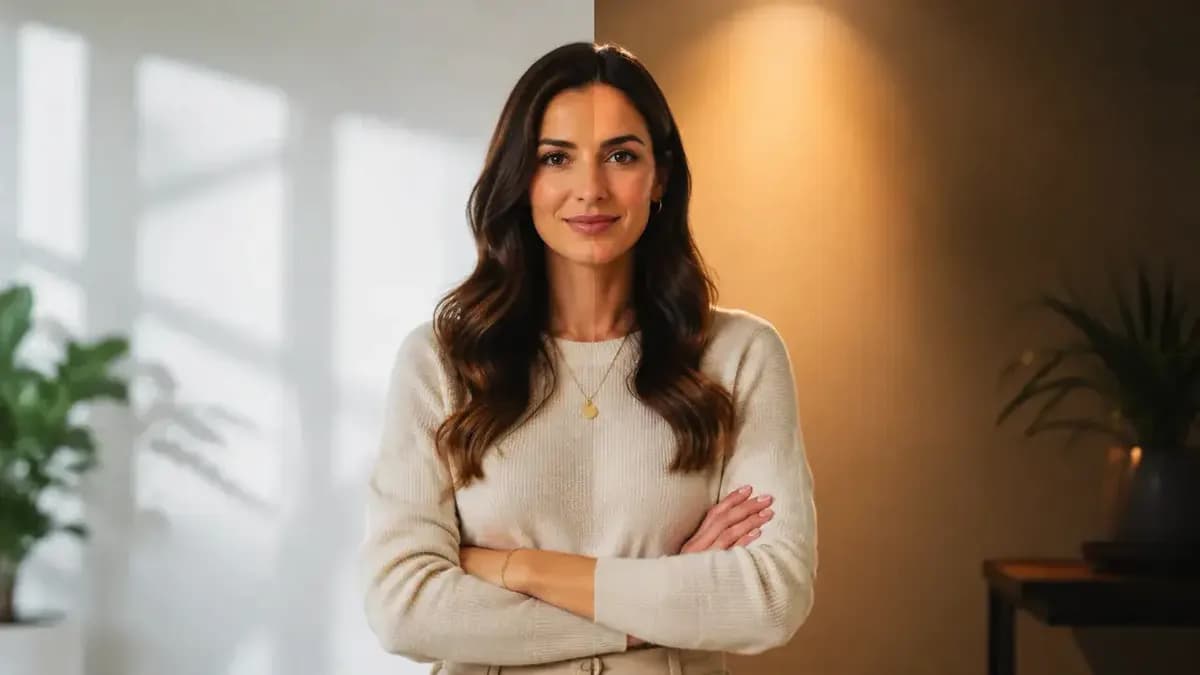
New accounts include 1 free GPT Image 2.5 generation. Other models and video use credits.
Example prompts
Portrait in an architecture studio
Use the person in my reference photo. Place them in a bright architecture studio with soft window light and a blurred shelf of models. Keep their face, hair, clothing and crop recognizable. Leave the background free of readable text.
Use this templateWhat an AI photo editor actually does to your image
There are two categories of tool, and confusing them wastes time. Pixel editing changes values in an existing image: exposure, colour, crop, removal. Generative editing produces a new image conditioned on your instruction and the original. On Ofrai you are in the second category. Practical consequences follow from that. Fine detail you loved may shift slightly between runs. Text and logos in the original will not survive. Skin texture can smooth out. The right mental model is a reshoot with a reference, not a filter applied to an existing file.
Re-lighting a photo without breaking the subject
Re-lighting is the highest-value edit and the easiest to get wrong, because a new light implies new shadows. Be explicit: 'relight with warm late-afternoon sun from the left, long soft shadows falling to the right, keep the subject's pose and clothing unchanged'. Always restate what must not change — pose, clothing, framing, face — because models do not treat those as protected by default. If the result looks pasted, the shadow direction contradicts what is already in the frame.
Add 'cast shadows consistent with the new light source' and rerun.
Season and time-of-day swaps
Season changes are reliable because they affect environment more than subject. Specify what carries over: 'change the season to winter, add snow on the ground and bare trees, keep the subject's clothing and pose identical, cold blue daylight'. Time of day works the same way: 'convert to golden hour, warm rim light from behind, long shadows, background sky shifted warmer'. Note that snow, autumn leaves, and wet ground all change the surface the subject stands on, which is where mismatches show.
Add 'snow resting naturally on every upward-facing surface' when it looks pasted.
Background replacement that holds up
Replacing a background while keeping the subject is the most common request and the most demanding, because the boundary has to survive. Describe the new scene, then describe the edge treatment: 'replace the background with a blurred city street at night, subject edge clean and natural, bokeh background'. Hair, fur, and thin fabric edges are where this breaks, so avoid complex edges for the first attempt and finish the composite in a normal editor if they matter.
Match the light direction between subject and new background; a shadow mismatch reveals the edit instantly.
Object, outfit, and wardrobe swaps in a still
Swaps work best when the replacement is simple and the area is well lit. Write the change as an instruction plus a preservation clause: 'change the jacket to a charcoal wool coat, keep the pose, the background, and the lighting exactly as they are'. Two or three swaps in one instruction is the practical limit; more and you lose fidelity to the original.
For a full outfit change, say 'keep the same person, hair, face, and background' rather than describing the new clothes in detail, and let the model fill in the styling.
Prompt recipes for four common edit jobs
Relight: 'Relight this photo with soft overcast daylight, no hard shadows, cool neutral grade, keep the subject's pose, clothing, and framing unchanged'. Seasonal: 'Change the season to autumn, amber leaves, low warm sun, keep the subject and clothing identical, soft shadows consistent with the new light'. Background swap: 'Replace the background with a blurred bookstore interior, warm practical lights, subject kept sharp with a clean natural edge'. Style pass: 'Restyle as a 1990s film photograph, visible grain, slightly lifted blacks, muted colours, composition and subject unchanged'.
Run one instruction per generation.
Tone corrections without wrecking the frame
Generation is a blunt instrument for tonal correction, but it works when you name the target instead of asking for a better photo. Write the result: 'lift the shadows two stops while keeping highlight detail, add a warm neutral grade'. Add one protective clause such as 'keep skin tone natural' or 'keep the subject's clothing colour unchanged', which stops the grade from dragging skin toward orange or fabric toward grey. What generation cannot do is match a fixed brand value, so correct those in a normal editor after export.
Running a batch of edits consistently
Batches fail when each instruction is written from scratch. Write one base instruction covering everything that must stay fixed — subject, pose, framing, background — then change only the edit clause per image, and keep wording identical between runs of the same edit type. If a batch drifts, the cause is usually paraphrasing, which shifts meaning slightly each time and lets small differences accumulate. For a long series, test the full instruction on three images first and confirm the subject is still identical before running the rest.
Edits you can paste for five common jobs
Each instruction below names the change, the thing that must survive, and one negative. Seasonal relight: "relight this photo with warm late-afternoon sun from the left, long soft shadows falling to the right, keep the subject's pose, clothing, and framing identical." Background swap: "replace the background with a blurred city street at night, keep the subject's edges crisp, match the light direction and colour temperature of the new background to the subject."
Outfit swap: "change the jacket to a charcoal wool coat of the same fit, keep the pose, the background, and the lighting unchanged." Time shift: "change the scene to early morning with cool blue light and mist, keep the architecture and the subject's clothing identical." Group tidy: "remove the traffic cone from the right foreground, fill the gap with matching pavement, keep the wall texture and the shadow direction identical." Notice that each instruction describes the new light in relationship to the old one.
An edit that names a new scene without a light relationship is the single most common cause of an edge that does not hold.
Check the available reference controls
Check that the selected model accepts reference images, then review the aspect ratio, resolution and credit estimate. For a local edit, use a mask if the selected model offers one. Start with one result and compare it with the original before repeating the job.
What a generative AI photo editor changes without being asked
Because nothing is preserved pixel-for-pixel, edits have side effects, and the side effects are predictable. Faces: the most likely thing to change without being asked, particularly eye direction and skin texture, so include the face in the keep clause. Hands: any edit near the subject's hands re-renders them, and they are the least reliable part of any generation. Background depth: a swap tends to reduce the background's depth of field unless you state it.
Text and signage: existing text in the original will be re-generated as plausible nonsense. Sharpness: the whole frame gains or loses a little micro-contrast each pass. The practical habit is to keep the original file, compare at 100 percent rather than at fit-to-screen, and treat the difference between the two images as part of the edit rather than as a bug.
Budget for a batch of photo edits
Run the most demanding photo on its own first. Review the output against the original and check the credit estimate before editing the rest. Where the model supports the same settings for each image, record them and change just the part of the prompt specific to each photo. Each new generation has its own cost.
Where this sits next to pixel editing
A pixel editor changes values in the pixels that already exist: exposure, white balance, crop, a removal patch, a layer blend. It is non-destructive, instant, and preserves everything you did not touch, which makes it the correct tool for a blemish, a level correction, and a crop. This workflow re-renders the frame from your instruction, which makes it the correct tool for putting the same subject in a situation that never happened — a different season, a different city, a different coat.
The practical consequence is that you cannot use this page for subtle corrections, and you should not: each pass costs a full render and can alter things you never asked about. Serious work usually uses both, and the order matters — correct the pixels first, then generate the new situation.
To generate a first draft from text, start with Ofrai Image Studio.
If each input provides a different person, setting, or object, see how to combine two references.
Use the edit workflow to review boundaries on tattoo cover-up concepts and consensual body-shape edits.
Examples
FAQ
- Is Ofrai's AI photo editor the same as a pixel editor like Photoshop?
- No. Here, editing means regenerating a new image from your instruction and the original photo, so nothing is preserved pixel-for-pixel. It is the right tool for re-lighting, season swaps, background changes, and restyling. It is the wrong tool for exposure corrections, spot removal, or clean-up, which need a conventional pixel editor.
- How do I stop an edited photo from looking pasted in?
- Make the light consistent across the frame. If you re-light a subject, ask for 'cast shadows consistent with the new light source', and if you replace a background, match the light direction to the subject. Complex edges such as hair, fur, and thin fabric are the hardest part, so start with a simple subject and finish those edges in a normal editor if they matter.
- What gets lost when I edit a photo on Ofrai?
- Fine detail you liked can shift slightly between runs, because each edit produces a new image rather than a modified copy. Text and logos in the original will not survive, and skin texture may smooth out. Treat every edit as a reshoot from a reference frame, and keep the original file rather than overwriting it.
- How many changes should I ask for in one edit?
- Two or three at most. Each additional change gives the model more freedom and reduces fidelity to the original. For a full outfit swap, keep the instruction about what to preserve — 'keep the same person, hair, face, and background' — and let the model fill in the styling, rather than describing the new clothes in detail.
- Can I change the season or time of day in a photo?
- Yes, and season swaps are among the most reliable edits because they affect the environment more than the subject. State what carries over: 'change the season to winter, add snow on the ground, keep the subject's clothing and pose identical, cold blue daylight'. Mention that snow or leaves should rest naturally on upward-facing surfaces, which prevents the pasted-on look.
- Does this page include a separate editing tool to install?
- No. The page deep-links into Ofrai Image Studio, where you attach an image, write the edit instruction, choose a live model, and generate using the same credits as text and video. Originals and edited versions are both kept in your library so you can compare and revert.
Related generators
- AI Image Enhancer
- AI Product Cutout Generator
- AI Transparent Product Assets
- AI Action Figure Generator
- AI Animal Generator for Pet Photos and Wildlife
- AI Avatar Generator — Consistent Faces
- AI Black And White Photo Generator
- AI Caricature Generator
- AI Character Sheet Generator
- AI Chibi Character Generator
- AI Classical Portrait Generator
- AI Cozy Anime Art Generator