Features
AI Image Combiner Tool
By Ofrai Editorial (Use Case Research)
Use Ofrai Image Studio to explore a composition from two reference images: a product and a room, an authorized portrait and a setting, or two visual directions. Upload references to a model that accepts them, explain the role of each image, and inspect the result for changed details. Available reference slots and generation costs depend on the selected model and settings.
New accounts include 1 free GPT Image 2.5 generation. Other models and video use credits.
Example prompts
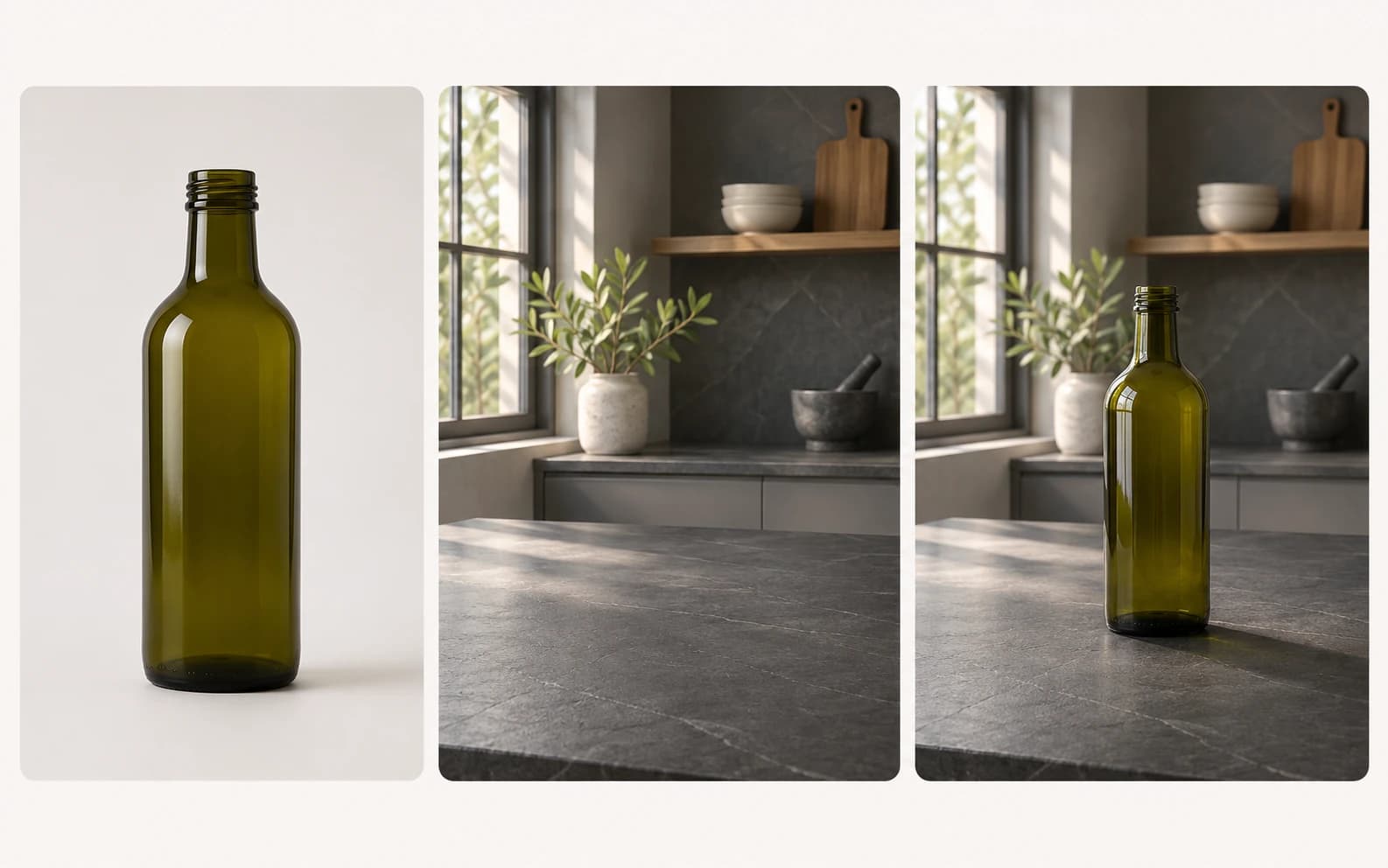
Upload an authorized packshot of an unbranded olive glass bottle and an authorized empty slate-counter kitchen photo. Place the same bottle on the counter, keep its shape and olive color, match the window light and add a realistic contact shadow. No logos or readable text.
Deciding what each reference is actually for
Give each reference one clear role: subject, object, environment or style. A plain-background product photo can show shape and material; a room photo can show light direction, palette and depth. If their lighting conflicts, tell the model which scene should lead instead of asking for an even blend. Start with two images and check the reference slots offered by the selected model in Image Studio. More uploads do not guarantee that every detail will survive the generation.
Placing a product into a believable scene
For a product-in-scene concept, use an authorized product image and a setting image as the two references. Name the object's material, approximate size and where it touches a table or floor. Ask for a contact shadow that agrees with the room light, then review the result at full size. Generative editing may change packaging, labels and proportions even when you request preservation. If exact branding matters, add or correct the wordmark in a separate design step rather than treating the generated picture as a verified packshot.
Use one reference photo per person
The moon café example on the friendship photo page uses two portraits. Each reference identifies one person, while the prompt supplies the setting and shared light. Use photos you have permission to edit and label the inputs in order. Compare both faces with the source portraits and inspect hands and overlaps before saving.
Fusing two styles without muddying both
Choose one visual direction to lead and describe the other as a texture, palette or lighting cue. For example, ask for a film-photography mood with restrained contemporary retouching rather than stacking many style labels. Check the subject after each run; a strong style cue can redraw faces, products or architecture. Pick an aspect ratio supported by the model for the final placement, and inspect the image at full size before sharing it because colour grading can conceal malformed details.
Aspect ratio and placement for composited sources
Reference images can have different shapes. Decide whether the final image is for a square tile, vertical story or landscape placement, then choose a ratio the selected model actually offers in Image Studio. Leave margin around the main subject so a later crop does not remove it. A generated placement may still shift the object or invent edges, so compare the output with both sources. For a hand-finished composite, align grain, colour temperature and contact shadows in an editor after generation.
Where combined images break down
Check four common failure points. Subjects can overlap or gain extra limbs, so state their positions separately. Product text can warp, especially on curved packaging; add exact lettering later. An object can appear to float if its surface contact is unclear; describe where it rests and inspect the shadow. Different white balances can make the combined scene look inconsistent; name the target light and correct the final colour in an editor if needed. These directions improve a brief but do not guarantee a clean result.
Choose a model by its current reference controls
The image models linked from this page are candidates for a reference-led workflow, not a ranked quality test. Open Image Studio and check how many reference images the selected model accepts, which output ratios it offers and what the displayed credit estimate is before generating. Some models accept only two references. A model or setting that cannot take both source images is the wrong starting point for this particular task. Keep the first prompt short enough to compare results without changing several variables at once.
Prompt strings for three common combine jobs
For a product and room, try: "Place the olive glass bottle from the first reference on the slate counter in the second; use the room's soft window light and add a contact shadow." For an authorized portrait and set: "Place the person from the first image in the second room at a natural scale; follow the room's overhead light and preserve their clothing where possible." For style: "Keep the subject from the first image and use the second only for colour and film-like texture."
Review every output against the originals because instructions to preserve identity or labels can fail.
What to hold constant across a combined set
For a series, keep the environment reference, target light direction, camera height and desired colour temperature in a reusable prompt note. Change only the subject or product instruction for the next image. Compare each result with the approved frame instead of assuming the model will reproduce the same room. Small edits to the reference image can also alter the output, so save the exact files and prompt used for each candidate. A designer may still need to retouch or rebuild details to make a campaign genuinely consistent.
Reading a bad composite and locating the fault
When an object floats, first clarify the surface and contact shadow in the prompt. When packaging becomes generic, try a clearer, straighter product photo and simplify the scene; Image Studio does not expose a universal reference-strength control. When two people merge, place them farther apart in the brief or create separate approved images for later manual compositing. If the whole frame looks flat, specify one lighting direction. Change one input at a time so you can tell whether the new reference or instruction helped.
Some problems will need conventional editing rather than another generation.
Plan iterations around visible problems
There is no reliable number of generations for a combine. First check that the references are clear and the selected model accepts them; then make one candidate and inspect object placement, lighting, identity and text. Revise the single most important problem before trying again. The cost varies with the model and settings, so use the estimate shown in Image Studio to plan the next run. If a logo or label must be exact, finish that element in an editor rather than spending repeated generations hoping the letters become correct.
Image combiner versus a product photo generator
A product-photo prompt can invent a setting when you do not have an existing room or surface to match. A two-reference combine is useful when your own product and location images should guide one new composition. Neither route guarantees that labels, scale or materials will remain exact, and a low-quality source makes those details harder to judge. Choose a clean original product image and a room photo with enough light and space for the object.
If the deliverable must reproduce a real SKU or established campaign precisely, compare the output with the source assets and finish it with conventional retouching.
See the two input portraits and their combined result in the moon café example.
To change the surroundings in a single photo, use the one-reference image editor.
FAQ
- How many images can I combine at once?
- Start with two references. The actual maximum depends on the image model and its current settings; some models accept only two. Check the available reference slots in Image Studio before uploading more.
- Can I combine a product photo with my own room photo?
- Yes, when the selected model accepts both references. Use an authorized product image and room photo, name the light direction and surface contact point, then inspect the generated result for changes to packaging and scale.
- Will my brand name stay readable in the combined image?
- Not reliably. Generated lettering may warp, particularly on curved packaging. If the label must be exact, add or correct it in an editor and compare the final image with your authorized product asset.
- Which Ofrai model combines references best?
- There is no verified universal winner for every pair of references. Compare the live reference-image limit, ratio options and credit estimate in Image Studio, then test the model that fits your sources and final format.
- How do I keep lighting consistent between two references?
- Name the target light in your prompt. Describe its direction, quality and colour, such as soft window light from camera left. If the references disagree strongly, try a better-matched source or adjust the final image in an editor.
Related generators
- Flux Kontext Max For Precise Image Editing
- AI Image Enhancer
- AI Photo Editor
- AI Product Cutout Generator
- AI Transparent Product Assets
- AI Action Figure Generator
- AI Animal Generator for Pet Photos and Wildlife
- AI Avatar Generator — Consistent Faces
- AI Black And White Photo Generator
- AI Caricature Generator
- AI Character Sheet Generator
- AI Chibi Character Generator