Tools
How to Choose an AI Image Model
By Ofrai Editorial (AI Model Curators)
Start with the job: editing a product photo, laying out readable text, or generating an illustration. Compare example results and pick a model to try in Image Studio.
New accounts include 1 free GPT Image 2.5 generation. Other models and video use credits.
How it works
Choose a live image model, write a prompt, optionally set ratio, and generate. Results land in your library. You do not open separate image-generator, ChatGPT-style, and Gemini-style accounts. Two settings do more work than most people expect before you type anything. Ratio decides the shape of the frame: 1:1 for profile grids and marketplace thumbnails, 4:5 for feed posts, 9:16 for stories and reel covers, 16:9 for hero banners and slide decks.
Output count moves the price more often than resolution does, so set it to four while you are still finding the composition and to one once you have found it. Every generation is stored in your library with its prompt attached, which is what makes the reference workflow further down this page possible at all.
Which model to start with
Product and fashion-like stills: Nano Banana Pro, because it holds a product shape and a printed label steady across variants and renders soft studio light without being told twice. Layouts and on-image text: GPT Image 2, the one that lays type out from a prompt and keeps letterforms readable at thumbnail size. Stylized and painterly worlds: Flux, especially when you want a consistent house look instead of photorealism. Photoreal scenes built from real-world references: Seedream. The practical rule is not to pick a favourite in advance.
Give the same four-slot prompt to two engines, keep the frame that solves the brief, and let the results choose for you. When the two are close, read the GPT Image vs Nano Banana comparison, because the deciding factor is usually text and reference handling rather than raw prettiness.
Run a model comparison
Open Image Studio and run the same prompt and aspect ratio on two models. Compare the details your brief depends on, such as the product label, type at thumbnail size, or edges around an uploaded reference. Check the estimated credits for each run before generating.
When to switch to Video Studio
Once a still passes review, open Video Studio with the same credits and animate the still as image-to-video on Seedance or Kling. You stay inside one Ofrai workspace from still to clip. The switch earns its cost when the motion is the point — a bottle turning, steam rising, fabric falling — rather than when you simply need several more stills.
Animate one approved frame rather than five drafts: video billing scales with duration and resolution, so a clip built on an unapproved frame wastes both the image credits already spent and the video credits about to be. Keep the approved still in your library so the frame and the clip stay linked.
Using a reference image to revisit a shot
Two things make a generation reproducible: the prompt and the reference. Save the approved image, prompt and visible model settings so you can use them as a starting point for the next pass. Two habits follow from that. Name prompts by job, light and ratio rather than by batch number, so the next person on your team can rebuild the frame.
And when a frame is nearly right, change one clause and regenerate instead of rewriting the prompt, because a rewritten prompt is a different image and the small edit is usually the one that was needed all along.
Prompt recipes that survive iteration
Vague prompts return vague frames. Write in four slots: subject, action, framing, light. For a skincare bottle: "amber glass dropper bottle on wet slate, single product, macro 85mm, soft window light from the left, shallow depth of field, neutral background." For a lifestyle flat lay: "ceramic mug, linen napkin, notebook and dried eucalyptus on an oak table, overhead 45-degree angle, morning window light, muted earth palette."
For a stylized variant: "same mug on a floating stone platform above a foggy valley at dusk, painterly brush texture, teal and amber palette." Keep the light clause identical across variants. It is the biggest lever on mood, and changing only that clause tells you whether the composition or the lighting is at fault.
Aspect ratio, resolution, and crop strategy
Pick the ratio the placement demands, not the one the engine happens to like. 1:1 for profile grids and marketplace thumbnails, 4:5 for feed posts, 9:16 for stories and short-video covers, 16:9 for hero banners and slide decks. Generate at the final ratio instead of cropping afterwards, because a 16:9 crop of a 1:1 frame usually costs you the subject's hands or feet.
Resolution and output-count settings move the credit price too, so a draft at standard quality and a hero at high quality are two different line items on the exact same prompt.
Reference images for a consistent set
A reference image is how you hold one product, face, or brand look steady across ten frames. Upload the approved frame, describe only what changes ("same bottle, same label, now on a mirrored plinth"), and keep the reference attached for the whole set. Change one variable at a time, or the thread is lost: swap the lighting, then the background, then the pose, saving the version that passed review each time.
If the reference drifts — label text smears, the bottle shape changes shape between frames — the set is no longer a set, and you should re-lock the hero image before spending more credits on the batch.
Where each engine breaks, and the fix
Hands and fingers blur on the faster engines: describe the pose with intent ("right hand resting flat on the table, fingers together") instead of writing "hand". On-image type turns to gibberish unless a layout model handles it and you hand it exact strings ("the word BOLDEN, heavy sans serif, all caps"). Over-stuffed prompts quietly drop objects, so cut back to one hero plus at most two props. Plastic skin and blown highlights almost always mean the light clause was vague — name the source and the direction.
And if the fourth revision has drifted away from the first, stop editing that thread and restart from the earlier frame with a single change.
What a batch really costs in credits
Credits are charged per generation, which makes a bad prompt the most expensive thing you can buy. Budget in stages: four draft frames at standard resolution, choose one, then two or three high-resolution passes on the winner. Engines price resolution and output count differently, so the same prompt can cost roughly twice as much on one model as on another.
Image credits, video credits, and chat credits all sit on one balance, so a heavy image session quietly eats the budget you had set aside for the clip later in the day.
A 30-minute product shoot workflow
Minutes 0–5: write the brief as subject, light, ratio, and mood, not as a pile of adjectives. Minutes 5–15: generate a contact sheet of drafts across two engines using an identical prompt. Minutes 15–20: pick the composition that holds up and lock the lighting clause. Minutes 20–30: produce the final set at delivery ratio and resolution, then send the hero frame to Video Studio as the source image for image-to-video.
Every step stays inside the same Ofrai account, so your library keeps the whole trail from first draft to final.
Who should skip a general image generator
Skip a general image generator when you need exact brand assets — logos, packaging copy, price tags, legal disclaimers — because no engine guarantees those glyphs. If you need a recognisable real colleague, client, or public figure, hire a photographer; likeness rights and frame-to-frame consistency are not prompt problems. If your team already works from a locked template library inside a design tool, generating raw pixels will often cost more review time than it saves.
Ofrai fits teams that want creative direction and fast variety, and that will retouch the winning frame anyway.
Building a house style library you can reuse
The cheapest frames are the ones you already solved. Once a prompt produces a frame the team approves, save it as a style reference: the light clause, the ratio, the camera phrasing, and the engine that delivered it. Next quarter’s campaign starts from that reference instead of a blank box, and your hit rate climbs because the model is being asked for something it has already proven it can do. Two habits make this work.
First, name references by job, not by date — "studio softbox, 4:5, hero bottle" beats "batch 12". Second, retire references that stop performing; a stale style reference quietly drags every new set toward last year’s look. On Ofrai this lives in your library, so the person who joins in six months inherits the house style instead of guessing it.
If you expect to switch between models during the same project, use the multi-model image workflow.
For a still image from the Vidu family, compare Vidu Image and Vidu Q3 Fast for images.
For a quick Vidu Q2 concept followed by a more detailed draft, compare Vidu Q2 Fast and Vidu Q2 Pro.
For typography or a layout with short text, start by testing Qwen Image 3.0 and Qwen Image 3.0 Pro.
Examples
Ideas from Ofrai — try the same prompt with different models. Not a locked lab test.
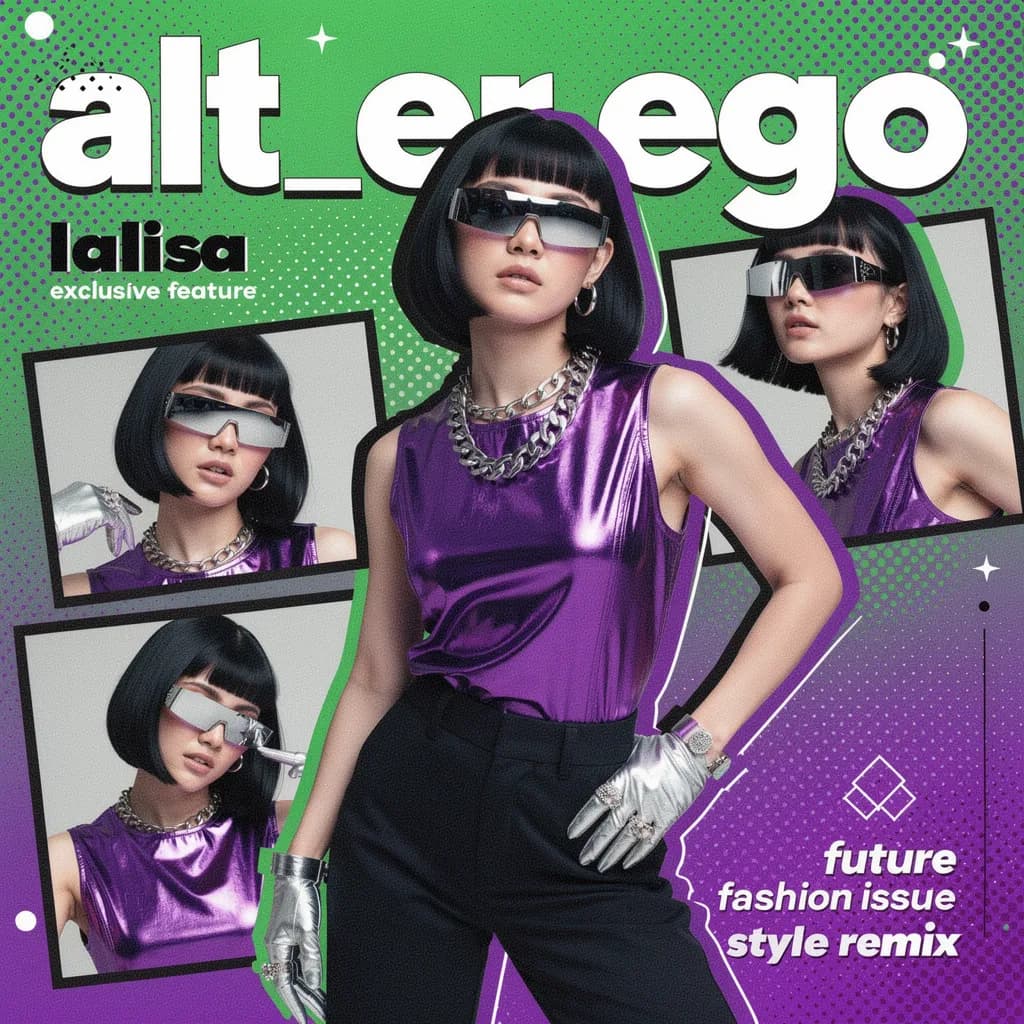
Nano Banana Pro
Fashion collage, lifestyle light. First try for product heroes and fabric.
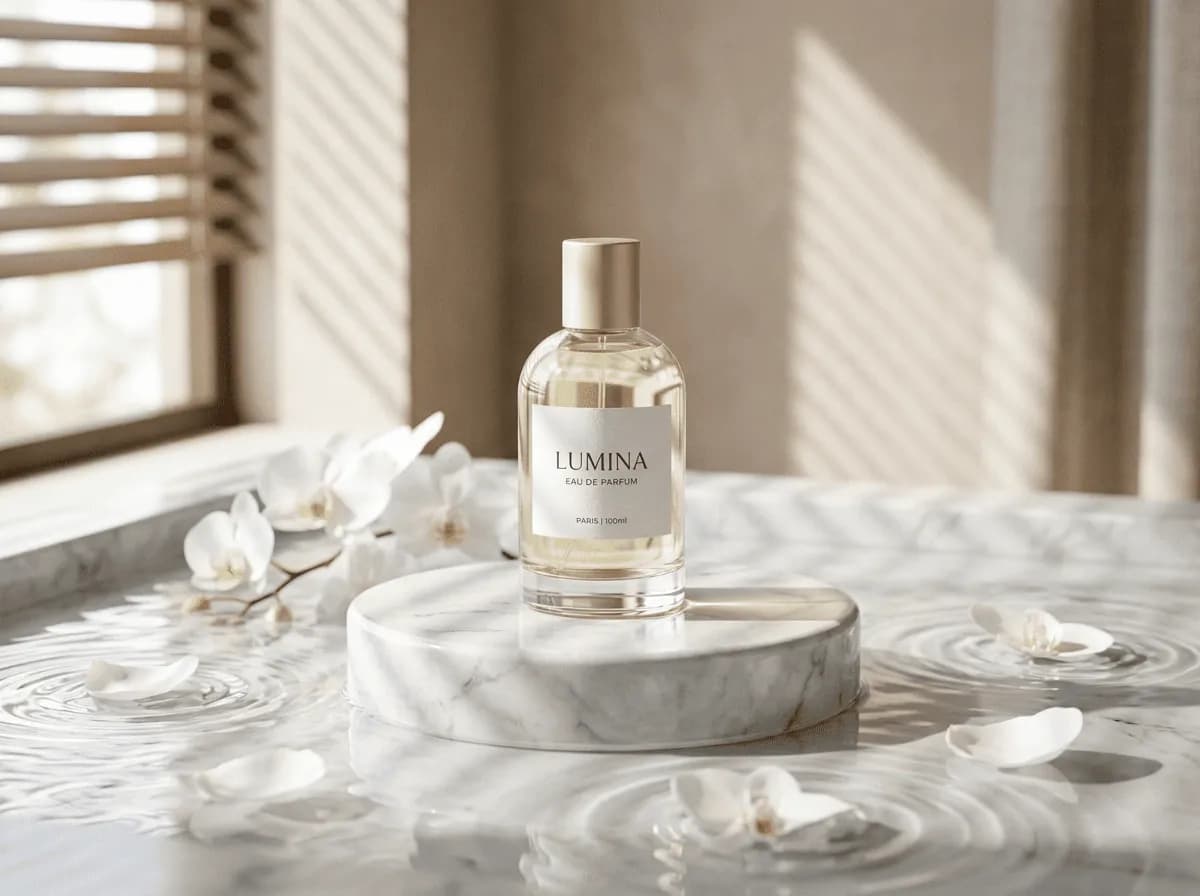
GPT Image 2
Perfume still life. Stronger when layouts and on-image type matter.
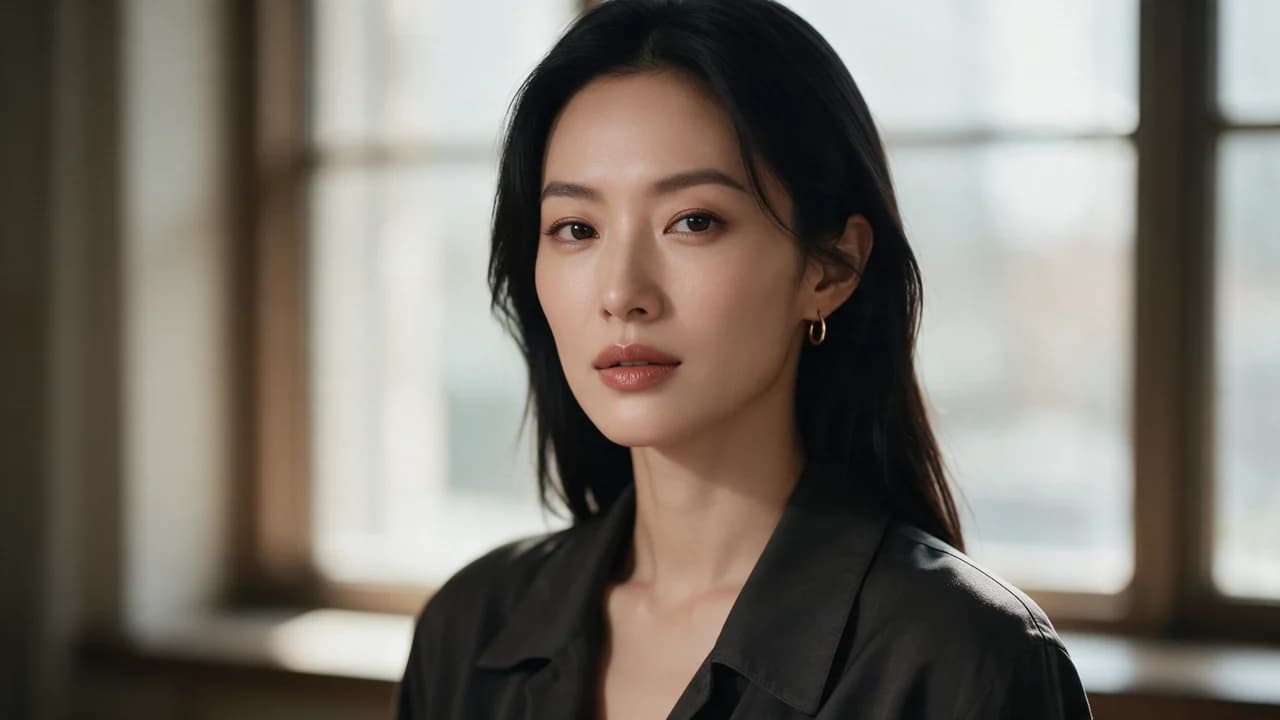
Seedream 5
Editorial portrait. Use when you want magazine skin and rim light.
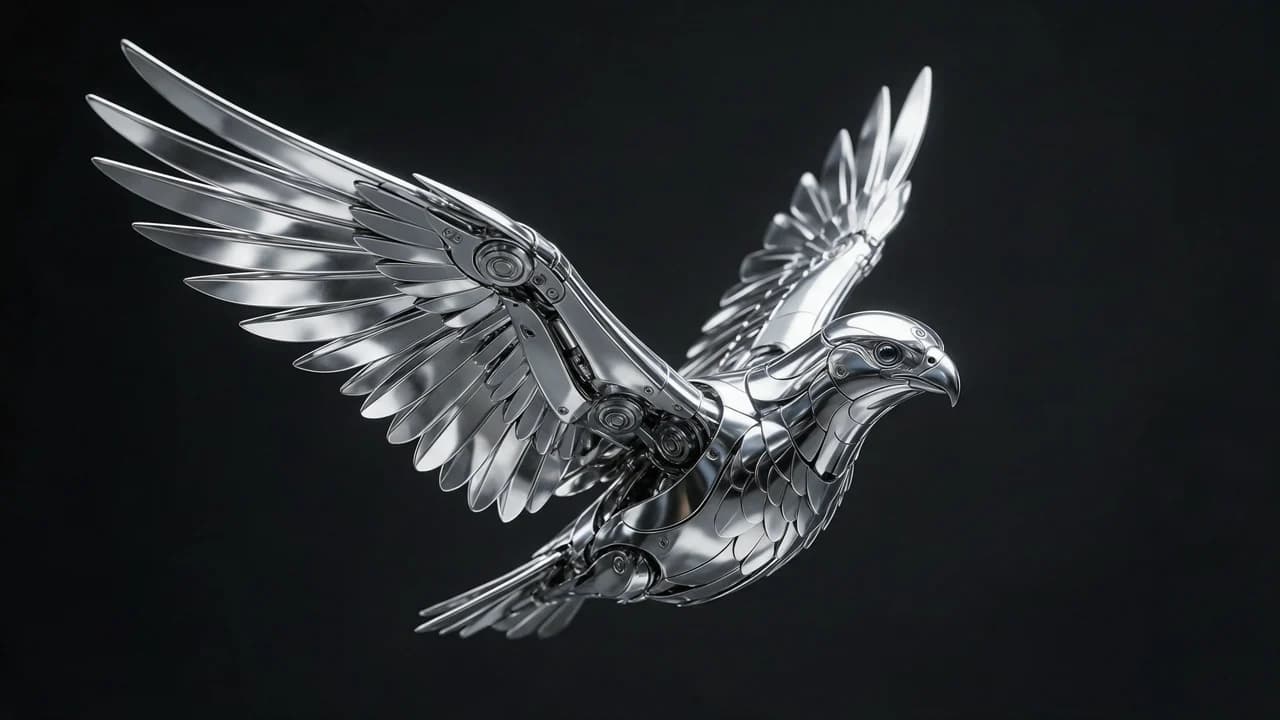
Flux 2
Stylized worlds and concept art — not the photoreal product lane.
Open studio
FAQ
- Which model should I use for product photos?
- Start with Nano Banana Pro for lifestyle lighting. If the frame needs readable on-image type (price, SKU, poster copy), A/B GPT Image 2. Flux is the stylized-world lane.
- How are image jobs billed?
- Per generation in Ofrai credits. models lists a starting price; studio options can change the spend. Chat, image, and video share one balance.
- How much does a generation cost?
- Each job lists Ofrai credits in the studio. Catalog credits are starting points; resolution and duration can change the final spend.
- How do I start on Ofrai?
- Open Image or Video Studio from this page, pick a recommended model, paste or adapt the starter prompt, and generate from your library.
- Can I use generated images commercially?
- For most listed engines, yes — once your publish path respects each models usage rules. Always check the model page before paid distribution.