Generating video uses Ofrai credits. The signup image voucher does not cover video. You can watch the sample clip without spending credits.
How many credits do I need?
These estimates show the credits reserved when you submit a 16:9 text-to-video job. Check the quote in Video Studio when you change the duration, resolution, aspect ratio or reference inputs.
Seedance 2.5 estimated credit reservation by clip length
Resolution
5 seconds
30 seconds
480p
528
3,164
720p
1,185
7,110
1080p
2,937
17,620
How does Ofrai calculate the final charge?
When a completed job reports usage, Ofrai calculates the charge using the rate accepted at submission. Unused credits are returned. If the job uses more than the reservation, the difference can be charged.
How many credits should I budget for retries?
Each attempt needs its own quote. Check the job status before submitting another attempt. A completed clip you discard still uses credits. For a job marked failed, check how failed generation credits are returned.
For two 5-second drafts and one 30-second render at 480p, the estimates above add up to 4,220 credits across three submissions. Use each job’s current quote when setting your budget.
Can Seedance 2.5 make a 30-second video?
At 480p, choose 5, 10, 15, 20, 30 seconds. Choose Text to Video for a prompt or Image to Video to upload a starting frame. Watch the 30-second test.
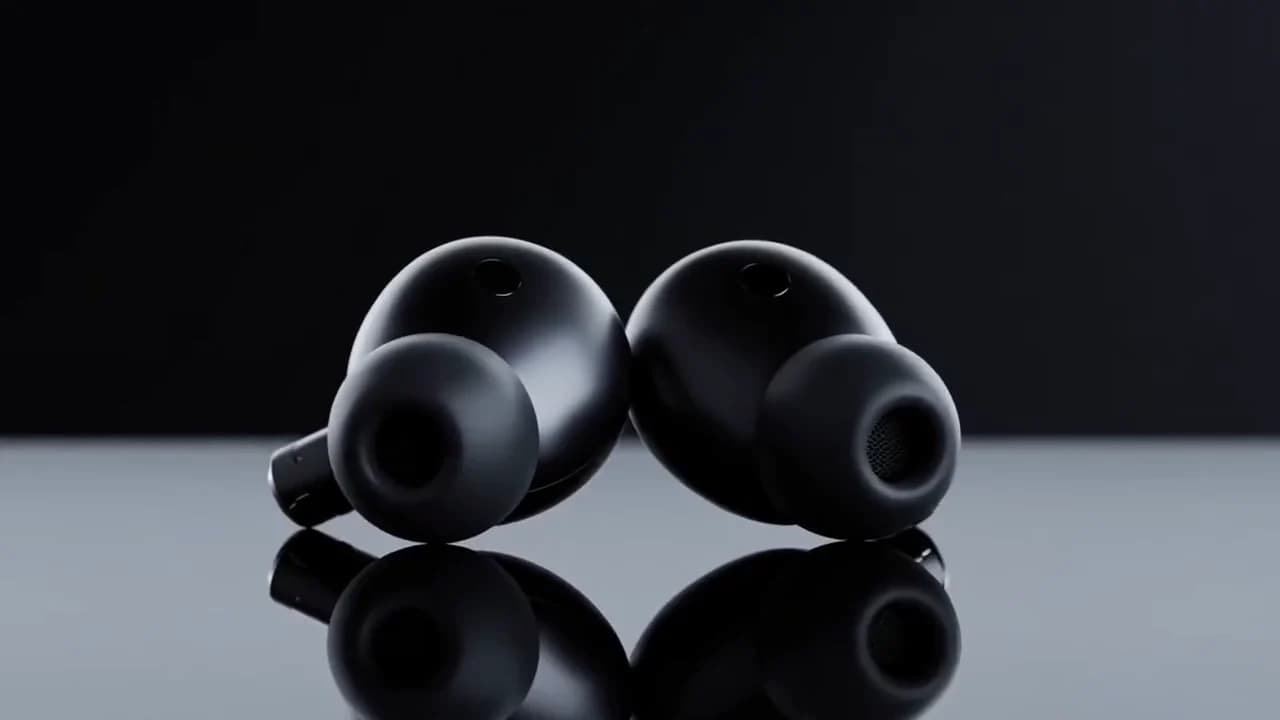
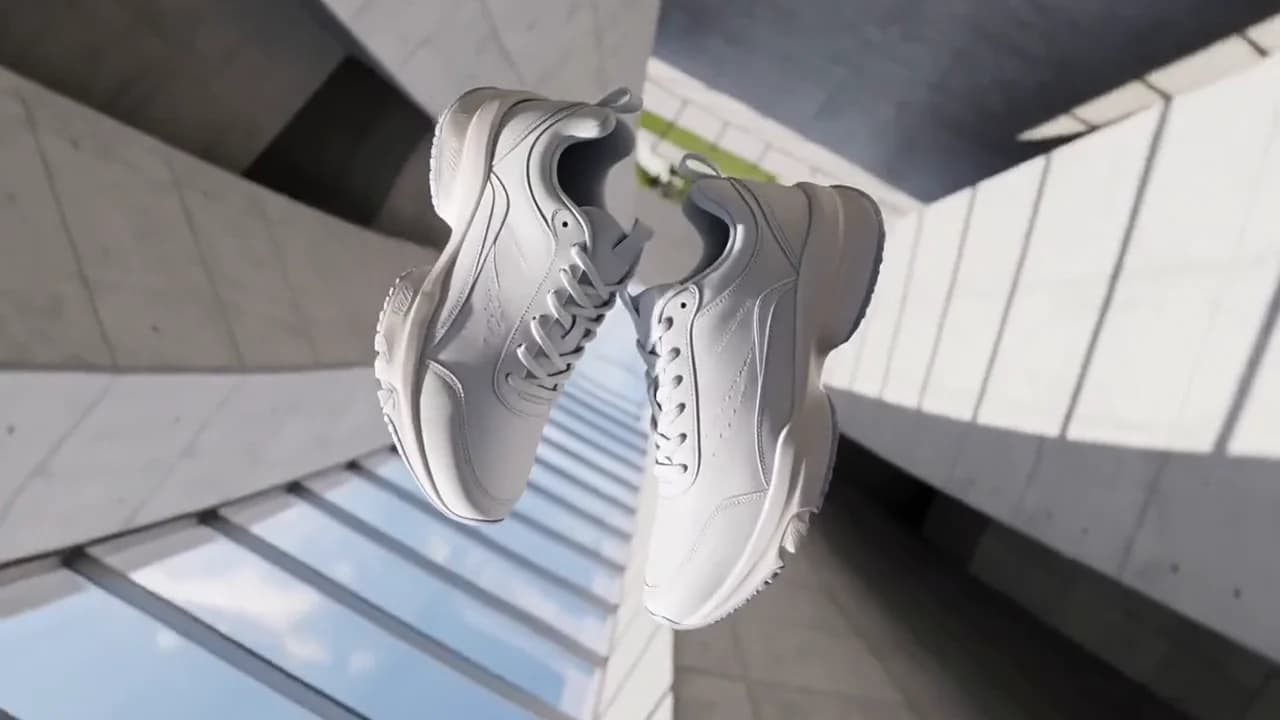
Headphone product shot generated with Seedance 2.5 · 5 seconds · 480p · 133 seconds to generate · recorded 2026-10-25Try the recorded prompt in Video Studio
Video studio
Preview
No clip yet
Your latest clip preview will show here after generation.
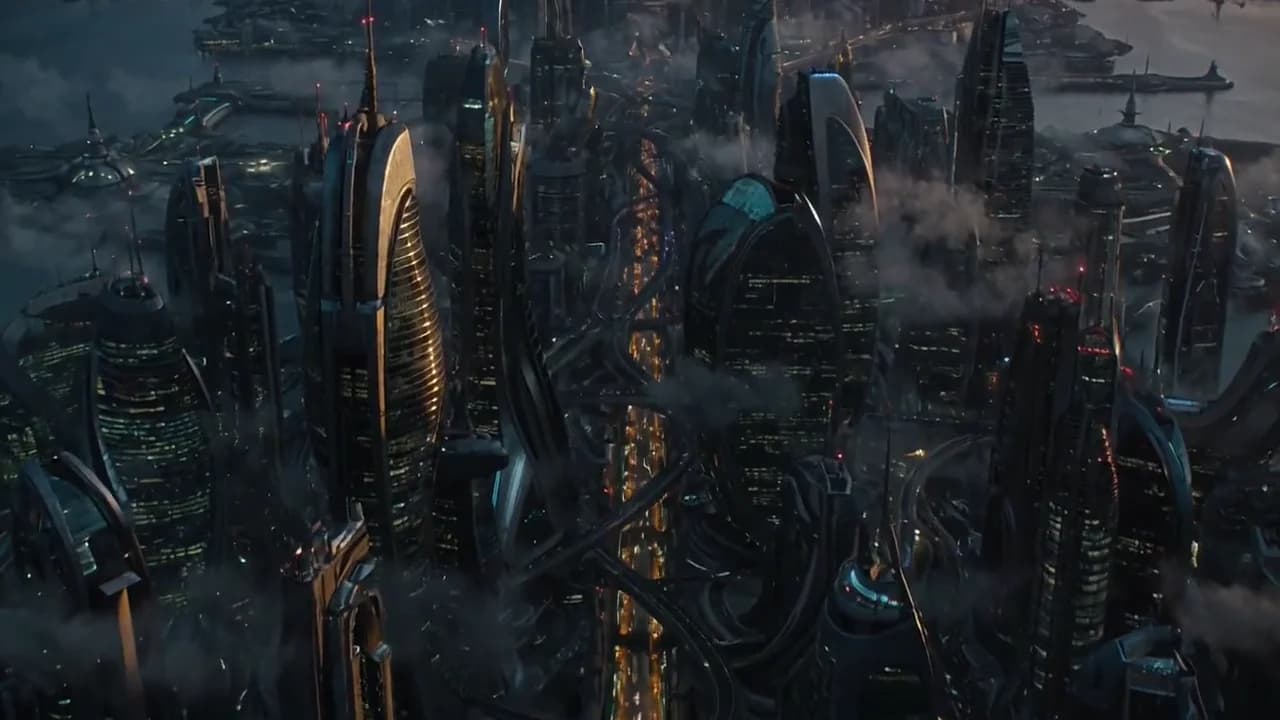
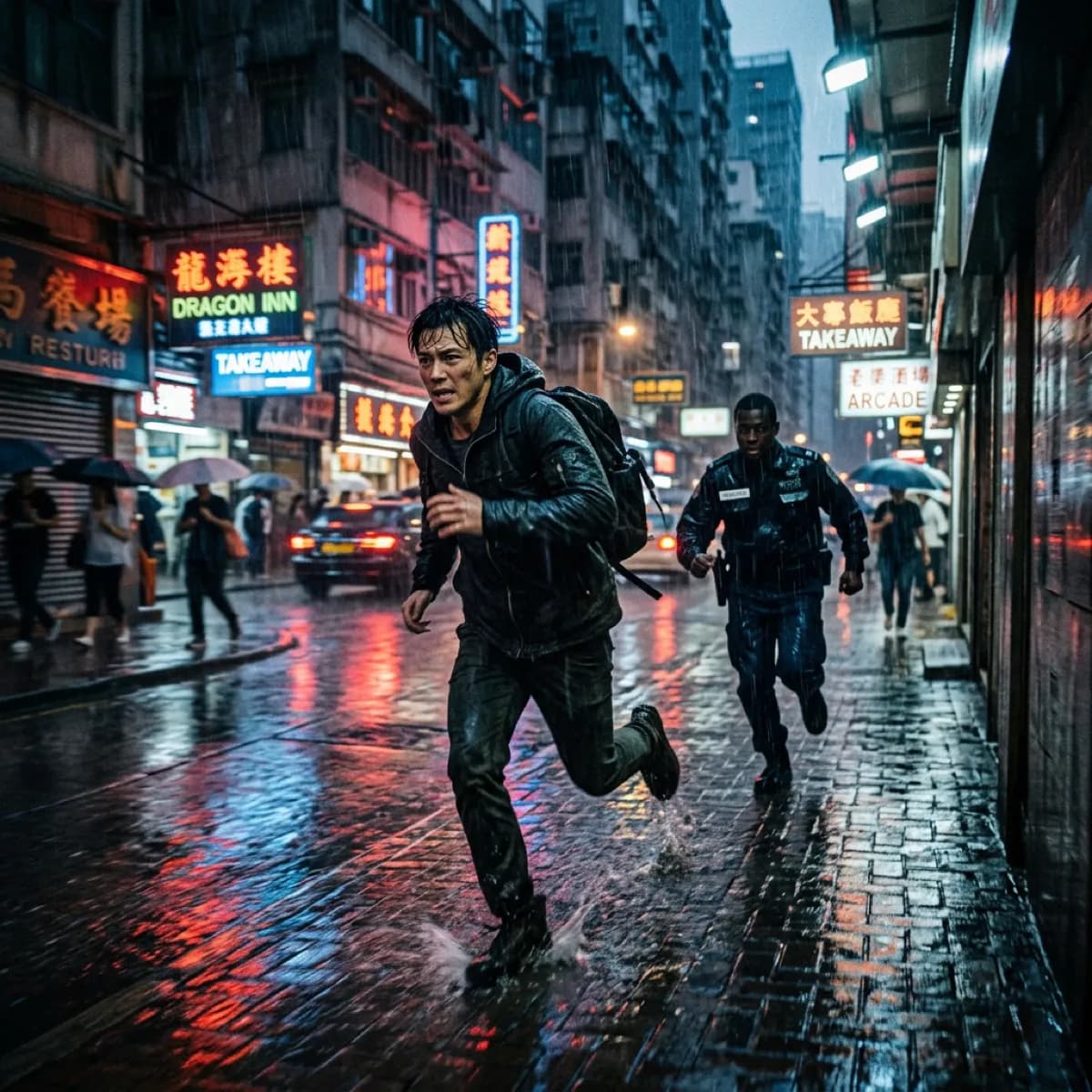
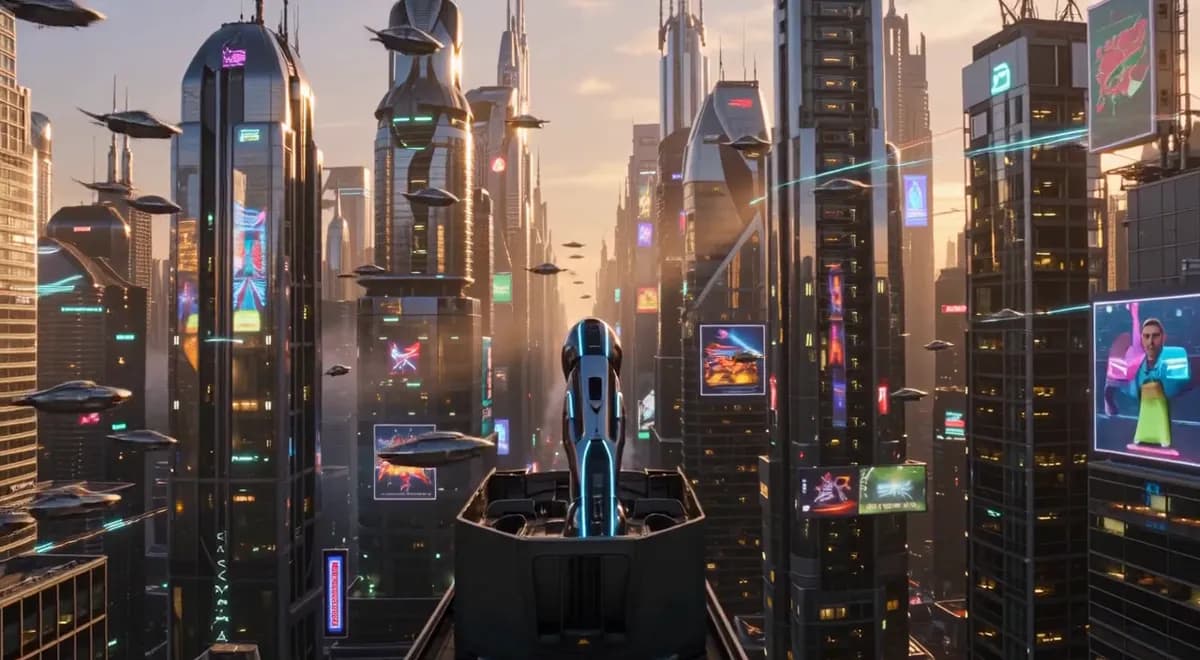
Choose an example to load its prompt and recommended settings into the Seedance 2.5 creator above.
How it works
Create with Seedance 2.5 in three steps
01
Choose your inputs
Keep Seedance 2.5 selected, then add a prompt and any supported reference assets.
02
Set the output
Choose the aspect ratio, resolution, and available Video options before generating.
03
Generate and refine
Review the result, adjust the prompt or settings, and generate another version from the same place.
Seedance 2.5 30-second generation test
November 15, 2026 · text to video · 480p, 16:9, audio off. The 30-second clip took 6 min 8 sec to generate.
Ofrai credit calculation for the November 15 test
Settings
Estimated reservation
Equivalent from reported usage
30s · 480p · 16:9 · audio off
3,164 credits
2,639 credits
The test ran through the provider API and reported 288,625 tokens. The equivalent uses the Ofrai rate at the time of the test. Check the current reservation in Video Studio when budgeting for another attempt.
The lamp stayed recognizable through one continuous push-in. The camera moved before the requested 10-second mark, cropped out the base by 9 seconds and kept moving after the requested hold at 20 seconds. For a shot that needs exact timing, plan the holds in your edit.
Read the exact 30-second prompt
A single continuous 30-second tabletop product shot of a matte teal desk lamp against a warm ivory wall. 0–10 seconds: hold the full lamp still in a wide front view. 10–20 seconds: slowly push toward the lampshade, keeping the lamp base and cord fixed. 20–30 seconds: settle and hold the closer framing. Natural soft daylight, no cuts, no text, no people.
Seedance 2.5 is the generation where the request itself changes category. Alongside text-to-video, first-frame and first-and-last-frame image-to-video, and multimodal reference generation, this endpoint accepts video editing and video extension as task types: you submit an existing clip and ask for it to be changed or made longer, instead of describing a new shot.
That structural difference has consequences in the parameters, because duration is no longer one field with one range — an editing task can only be submitted with the automatic value, an extension task can take 4 to 30 seconds or the automatic value and counts the total post-extension length, and the frame ratio for edit, extend and first-and-last-frame jobs is taken from the interface requirement rather than chosen. The resolution ladder is 480p, 720p and 1080p.
So the honest comparison with Seedance 2 is not about which renders better, because the documentation does not say; it is about which ceilings and which task types you actually need.
Generate, edit, extend: three task types on one endpoint
Most generation endpoints describe one relationship between input and output: whatever you supplied, produce a clip from it. Seedance 2.5 documents three, and the third is the one that changes what the interface is for. Text-to-video and first-frame or first-and-last-frame image-to-video are the familiar pair. Video editing takes a clip you already have and returns a modified version. Video extension takes a clip and returns a longer one.
Those two are not incremental features on a generation endpoint — they are a different relationship with the input, and they carry a rule that follows from it: the frame ratio is no longer yours to pick. The documentation says edit, extension and first-and-last-frame tasks use adaptive, as the interface requires, and that you can alternatively let the input material determine the ratio.
So an edit request that arrives with 9:16 intended but a 16:9 source clip will not be re-composed for you; the geometry belongs to the material you sent. That is the correct behaviour for an editing tool — you are asking for a change, not a re-shoot — but it is the reason an edit workflow cannot be planned as though the frame were a per-request parameter.
Duration is constrained by the task type, not just by the field
The duration field ranges from 4 to 30 seconds, with -1 meaning the model chooses. Read that as a single range and you will send invalid combinations. The documentation separates the cases: an editing task can only use -1, and the output duration will be essentially the same as the input video's; an extension task can use 4 to 30 or -1, and there the duration is counted as the total length of the extended output rather than as the length added.
The practical consequence is that duration is a function of what kind of job you are doing, not a free choice. An edit is length-preserving by definition, which is the right semantic for a change request but means you cannot use an edit to compress a long take into a slot — that is a different request than the interface offers.
An extension is where the range becomes live, and the distinction between added length and total length is the one to hold: asking an extension task for 8 seconds does not necessarily return a clip 8 seconds longer than the input. If your workflow needs to know the exact final length, compute it from the input and state the target accordingly.
Pure audio reference, and what it is for
The reference set here covers images, video and audio, and it explicitly includes audio-only reference. That is a different capability from generating sound, and it is easy to conflate: a reference audio item is not a soundtrack request, it is material the shot is built against. A voice, a melody, a room tone supplied as reference lets the model shape the visual around it — a performer lip-syncing to a supplied read, a scene cut to the rhythm of a supplied track, an atmosphere inferred from a noise sample.
The prompt is where this gets specified, since the documentation asks for scene, camera movement, subject action, style and sound atmosphere, and tells you to address materials by tag: image 1, video 1, audio 1, in the order of the arrays you sent. The same discipline applies as on the reference-driven models elsewhere in this group: describe what you supplied in the tag, not in prose.
A prompt that re-describes the reference audio creates a second, competing description of it, and the model then has to decide which one it was given.
The resolution ladder, and what it costs you against the previous generation
Resolution on this endpoint is 480p, 720p or 1080p. There is no 4k here, and that is the single most consequential difference from Seedance 2, whose base id reaches 4k. It is worth stating plainly rather than discovering at delivery: if the brief needs a 4k master, this generation cannot produce it on this endpoint, and the correct move is to take the earlier generation for the master step rather than to plan around a resolution that is not on the ladder.
Within this endpoint's own ladder, the practical pattern is the ordinary one — 480p while the prompt and the framing are still moving, 1080p once the shot is settled — with 720p in between as the format most social deliveries actually want.
The other side of the trade is that a wider duration window and two extra task types are things the earlier generation does not offer at all, so the ladder is not a step backwards across the board; it is a narrower top rung attached to a broader set of things you can ask for.
Choosing between this generation and the earlier one, honestly
Here is where it is worth being blunt, because the comparison gets oversold. What the documentation actually separates is four things. Duration: 4 to 15 seconds on Seedance 2, 4 to 30 here. Task types: editing and extension exist only here. Resolution: 4k exists only on the earlier base id. Tier family: the fast and mini ids belong to the earlier endpoint, not this one. What the documentation does not do is state that either build produces better motion, better adherence or better detail than the other.
There is no basis in the reference for an upgrade story, and this page will not invent one. So choose on ceilings: need longer than fifteen seconds, or need to change an existing clip, or need to extend one, and this is the endpoint; need a 4k master, or want the fast and mini tiers for volume work, and the earlier one is the better buy.
If your brief needs both — a 4k master of a clip you also want to edit — you are looking at two requests across two endpoints, which is a legitimate pipeline and better than pretending one of them does both.
Prompting for a job that has an input clip
The prompt guidance is documented in the usual five categories, but the phrasing changes when an input clip exists, and that is where most edit attempts go wrong. With a clip as input, the prompt is a delta, not a description: it should say what changes — what is added, removed, re-styled, re-timed — rather than restating the scene the clip already shows.
Describing what is already in the frame competes with the frame itself, and it is the most common reason an edit comes back looking like a re-generation with small differences rather than the requested change. Write the change first and let the clip supply everything else; keep the camera instruction only if the camera is actually what should move. For the image roles, keep using image_with_roles rather than the compatibility field, declare each image's purpose explicitly, and never send both fields in one request.
And because edit tasks are length-preserving, do not put duration-driven intentions into the prompt hoping the model will honour them — the field that governs length is governed by the task type instead.
FAQ
What can duration be on an editing task?
Only the automatic value -1. Editing tasks are length-preserving — the output duration is essentially the same as the input video's — so there is no way to submit an edit that deliberately compresses the clip to a shorter length through this field.
How does duration work for video extension?
An extension task accepts 4 to 30 seconds or the automatic value -1, and the number is counted as the total length of the extended output rather than as the amount added. So an 8-second extension request does not necessarily return a clip eight seconds longer than the input.
Which resolutions are supported?
480p, 720p and 1080p. This endpoint has no 4k rung; 4k is documented on the base id of Seedance 2, so a brief that needs a 4k master has to take the earlier generation for that step.
Does the documentation say Seedance 2.5 renders better than Seedance 2?
No. The reference separates the two on duration range, task types, resolution ladder and the availability of the fast and mini tiers, and states no quality difference between the builds. This page therefore argues the choice from ceilings and task types rather than claiming an upgrade.
FAQ
Can I use Seedance 2.5 directly on this page?
Yes. The creator above is the working Ofrai studio with Seedance 2.5 selected by default.
Where are my finished results saved?
Signed-in generations are kept in your Ofrai library so you can download or revisit them.
Which prompts work best with Seedance 2.5?
Describe the subject, setting, visual style, lighting, and camera or motion clearly. The examples above provide practical starting points.
Can I edit the example prompts before generating?
Yes. Load any example, then change its wording, aspect ratio, references, or other supported settings in the creator.
Related models
Compare other Video models that can handle similar creative work to Seedance 2.5.