Video
Gemini Omni Flash
Video
Available on Ofrai — chat, images, and video in one place with shared credits.
Example prompts
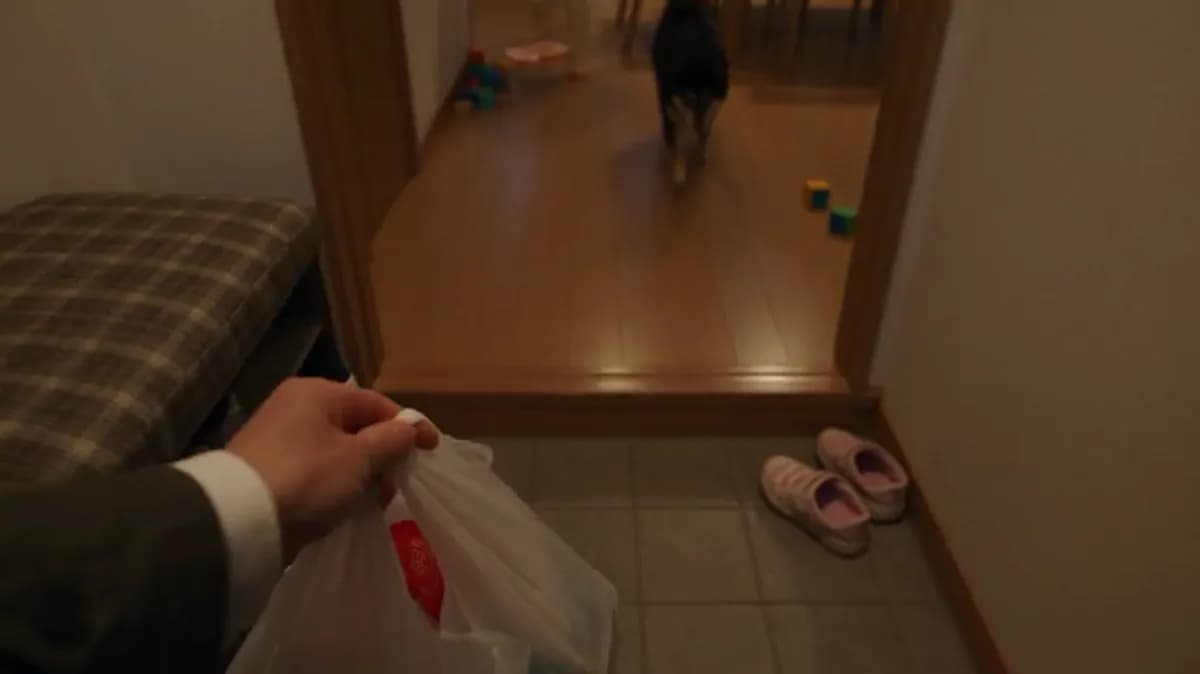
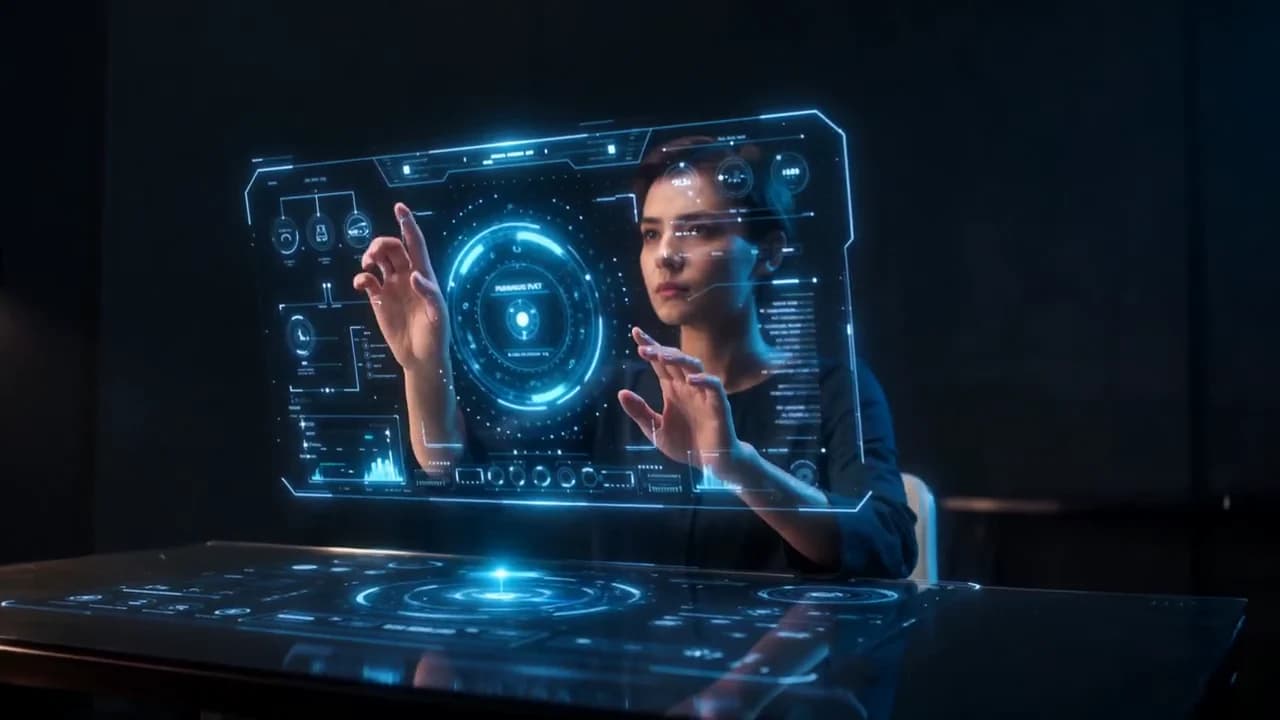
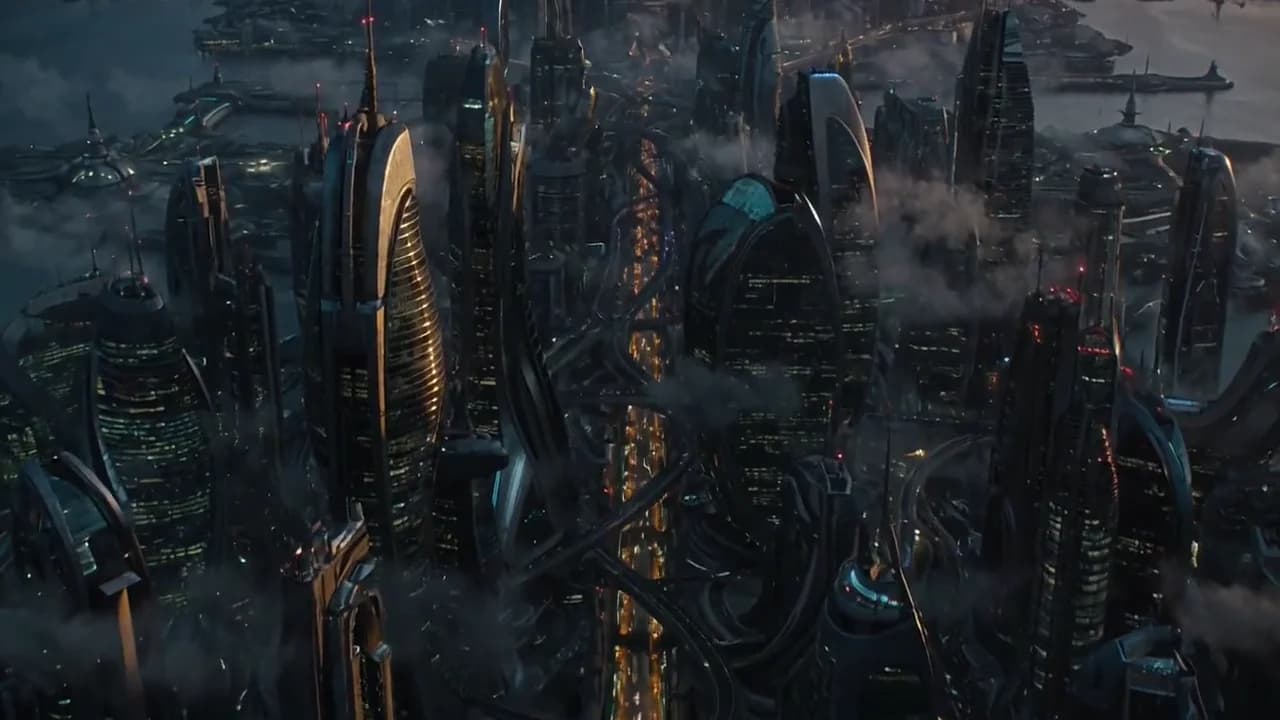
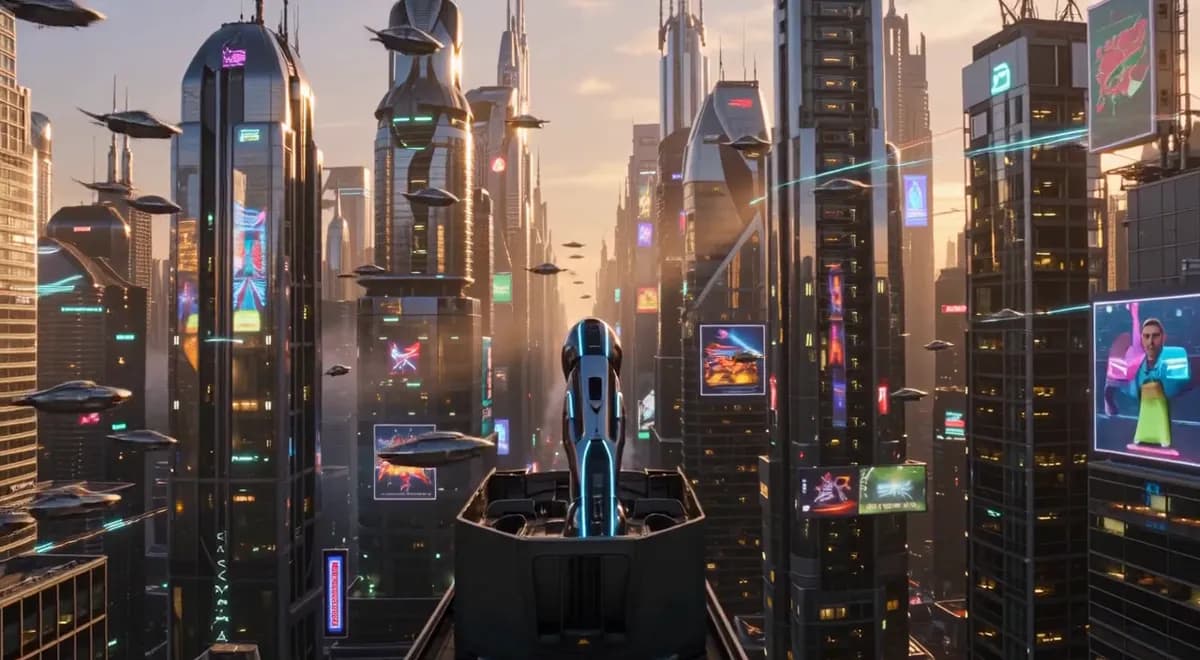
Choose an example to load its prompt and recommended settings into the Gemini Omni Flash creator above.
How it works
Create with Gemini Omni Flash in three steps
- 01
Choose your inputs
Keep Gemini Omni Flash selected, then add a prompt and any supported reference assets.
- 02
Set the output
Choose the aspect ratio, resolution, and available Video options before generating.
- 03
Generate and refine
Review the result, adjust the prompt or settings, and generate another version from the same place.
Gemini Omni 1.1 Flash Preview is a single endpoint that both generates video and edits it, and the reference is written to reflect that. Generation takes a prompt plus either up to ten reference images or up to three input videos — never both at once, because the two lists are mutually exclusive. Editing and extension take a different subset of the same parameters, and one field has to be withheld entirely on those routes: aspect ratio is documented as something you should not send when editing or extending.
On the generation side the settings are unusually wide for a preview endpoint, with 4K sitting in the resolution list next to 360p and 720p, a duration window of three to ten seconds defaulting to six, and only two aspect ratios to choose between. That last constraint is the one most likely to surprise: after asking for ten different framings elsewhere, this endpoint offers exactly landscape and vertical.
One endpoint that generates, edits and extends
The parameter reference covers three jobs on one surface, and the differences between them are documented rather than discovered by trial. Generation uses prompt, duration, resolution, aspect ratio, and then either image URLs or input videos. Editing and extension use the same surface with one explicit exclusion: the documentation instructs you not to send aspect ratio when editing or extending, because the output geometry is inherited from the source material rather than chosen.
That is a well-designed default, and it is also a validation hazard — a request builder that sends every field on every route will produce a request the endpoint does not want. Route the aspect ratio field on the generation path only, and leave it out of edit and extend payloads entirely. Practically, the three jobs have different planning rhythms: generation is where you choose duration and framing, while editing and extension are operations on an existing clip whose length and shape you did not pick.
Duration is three to ten, and the default is six
Duration is whole seconds from 3 to 10 with 6 as the default, and unlike some entries in this catalogue the reference states the default explicitly, so an omitted value has a defined meaning rather than an ambiguous one. Six is a reasonable default for a single generated beat: long enough for a shot to establish and move, short enough that a drifting subject has little room to show.
The ten-second ceiling is lower than the fifteen available on several neighbouring endpoints, which tells you how this model is positioned — it is an endpoint whose value is breadth of input handling and output resolution rather than maximum take length. Plan sequences accordingly: render three-to-six second beats, assemble them downstream, and treat any need for a longer continuous take as a reason to evaluate a different model rather than as something this endpoint can be pushed into.
4K is in the resolution list
Four values are offered — 360p, 720p, 1080p and 4K — with 720p as the documented default. Two things are worth drawing out. First, the presence of 4K on a preview endpoint is unusual and it changes how you should sequence your work: the sensible pattern is to lock the shot at 720p, confirm that the prompt, the framing and the references are all doing what you want, and only then spend a 4K render on a take you have already approved.
Going straight to 4K while still rewriting prompts is the most expensive way to iterate. Second, 360p exists, and it is worth using deliberately rather than treating it as an embarrassing default — a 360p pass is a cheap way to test whether a reference image is being interpreted the way you intended before you commit to a high-resolution render with ten images attached.
Ten reference images or three videos, and never both
This is the defining constraint of the endpoint and it is stated as a hard mutual exclusion rather than a preference. You may attach up to ten reference image URLs for generation, or up to three input videos for editing, each entry carrying its own video URL, but combining them in one request is not a supported configuration.
Ten references is a lot of surface — enough to define a subject, a wardrobe, a setting and a look across several shots — so if your brief has a rich image set, this is the endpoint that will consume it whole. Input video is capped at three entries, with MP4 and MOV supported and a 50 MiB ceiling per item, which is a per-item limit you should read literally rather than as a total across the three.
Decide early which side of the exclusion your project lives on, because the editing workflow and the multi-reference workflow are different pipelines that happen to share a name.
Only two aspect ratios, and that is a real constraint
The aspect ratio list contains exactly two values, 16:9 and 9:16, with 16:9 as the default. Everywhere else in this catalogue you will find square, portrait and landscape three-by-two framings available; here they do not exist as values. That has a direct consequence for planning.
A square social post, a 4:5 feed crop and a 2:3 print-oriented frame all have to be produced as one of these two and then reframed in your editor, which means either accepting the crop or planning the composition with safe areas. The mitigation is mundane and effective: author your prompts knowing which of the two you will render, and place the subject away from the edges that a later crop will remove.
It is also worth noting that the parameter is generation-only, so a vertical master can be edited without re-specifying a ratio, and the editing path inherits the geometry of whatever you send it.
Prompt is required, so the brief is the whole control surface
Unlike several neighbours in this catalogue, prompt is required here — the documentation states it plainly, with no optional-with-legacy-exceptions wording. That makes this a model where the writing is the control surface, and it means the effort belongs in the brief rather than in the parameters. With a required prompt and only two framings, the things you can still control are the content of the shot, its motion, and how thoroughly you use the reference list.
Ten images is a meaningful budget: name what each reference is for in the prompt text, so the model is resolving an assignment rather than blending ten equally-weighted inputs into a generic composite. That is the single highest-leverage habit on this endpoint. When a render comes back looking like an average of your references rather than a combination of their roles, the fix is almost always in the prompt's treatment of the reference list rather than in the parameter values.
FAQ
- Can I send reference images and input video in the same request?
- No — they are mutually exclusive. Generation accepts up to ten reference image URLs, or up to three input videos, but combining them is not a supported configuration. Decide which side of the exclusion the project needs before you build the pipeline, since the two paths are different workflows that share an endpoint.
- What are the limits on input video?
- Up to three entries in video_list, each carrying a video_url. MP4 and MOV are supported, and the 50 MiB limit applies per item rather than across the whole list. Read it as a per-entry ceiling when you are assembling sources.
- Which resolutions are available and what is the default?
- 360p, 720p, 1080p and 4K, with 720p as the default. The presence of 4K on a preview endpoint makes it worth locking the shot at 720p first and spending the 4K render only on a take whose prompt, framing and references you have already approved.
- Do I send aspect ratio when editing or extending?
- No. The documentation explicitly says not to send the field for video editing or extension, because the output geometry is inherited from the source. Send aspect ratio on the generation path only, and make sure your request builder does not blanket-include it on every route.
FAQ
- Can I use Gemini Omni Flash directly on this page?
- Yes. The creator above is the working Ofrai studio with Gemini Omni Flash selected by default.
- Where are my finished results saved?
- Signed-in generations are kept in your Ofrai library so you can download or revisit them.
- Which prompts work best with Gemini Omni Flash?
- Describe the subject, setting, visual style, lighting, and camera or motion clearly. The examples above provide practical starting points.
- Can I edit the example prompts before generating?
- Yes. Load any example, then change its wording, aspect ratio, references, or other supported settings in the creator.
Related models
Compare other Video models that can handle similar creative work to Gemini Omni Flash.
Compare
Use cases
Related guides
Tools
Commercial use depends on the selected model and model terms.