Video
Vidu Q4
Fast iteration for short-form content.
Available on Ofrai — chat, images, and video in one place with shared credits.
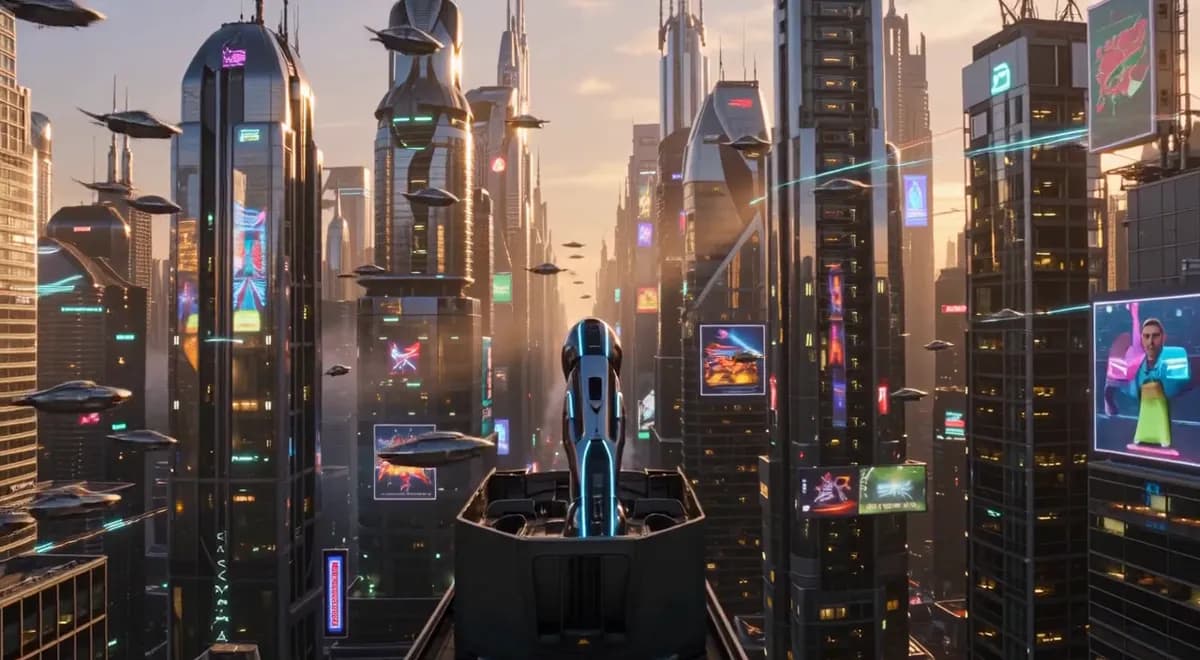
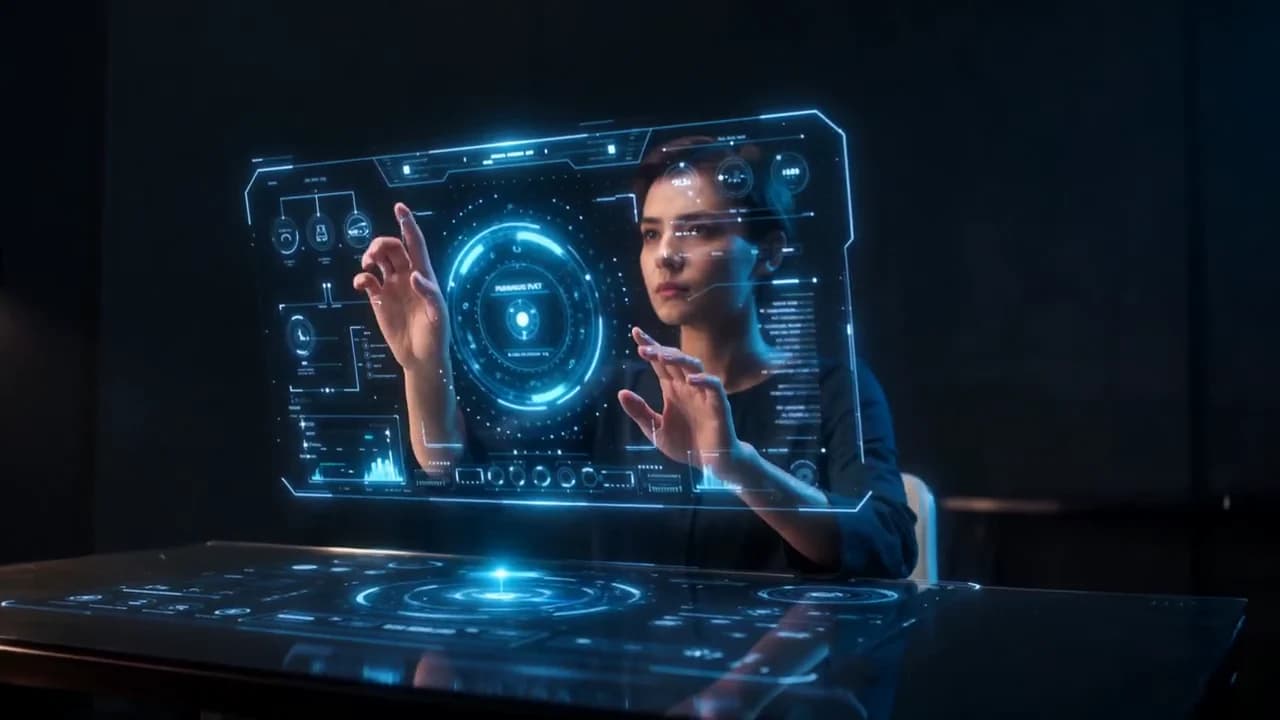
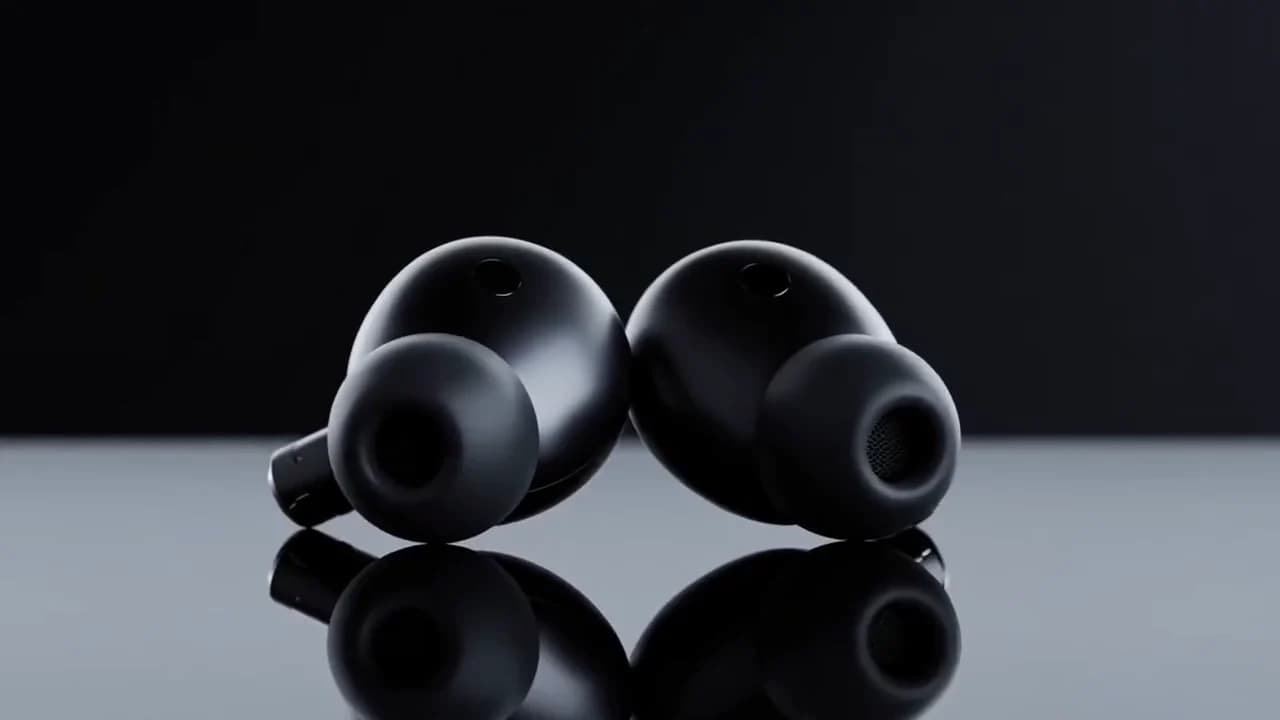
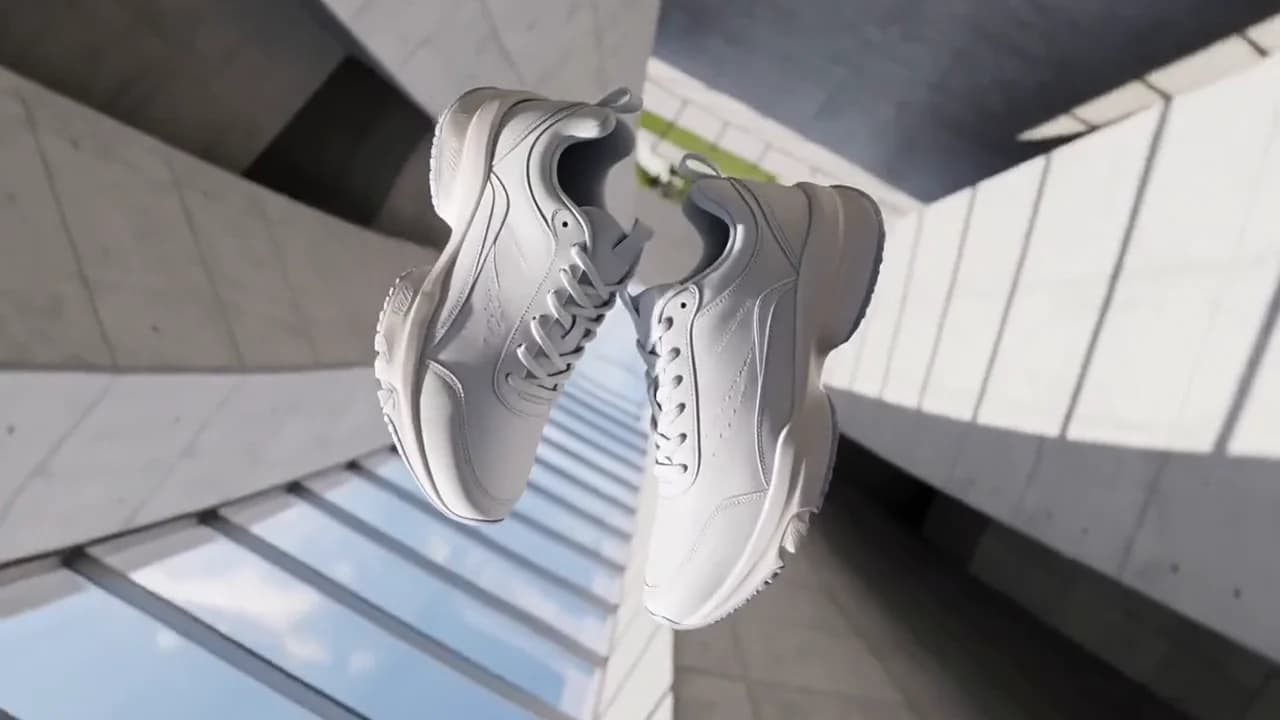
Example prompts
Choose an example to load its prompt and recommended settings into the Vidu Q4 creator above.
How it works
Create with Vidu Q4 in three steps
- 01
Choose your inputs
Keep Vidu Q4 selected, then add a prompt and any supported reference assets.
- 02
Set the output
Choose the aspect ratio, resolution, and available Video options before generating.
- 03
Generate and refine
Review the result, adjust the prompt or settings, and generate another version from the same place.
Vidu Q4 is documented as a preview endpoint — the model id is viduq4-preview — and it is a different generation from the Q3 line rather than a fresher build of it. The headline change is the resolution ceiling: Q4 accepts 540p, 720p, 1080p, 2K and 4K, where the Q3 family stopped at 1080p. That extra headroom is priced, because the reference states plainly that a higher resolution means a higher unit price. The other structural change is how images reach the model.
Q3 treated the image count as the mode selector; Q4 adds an explicit video_generation_mode flag, so first-frame generation and reference-driven generation are named states rather than something inferred from how many URLs you happened to send.
What Q4 changes relative to the Q3 line
Two things, and the first is the one that shows up in the invoice. The Q3 family documents 540p, 720p and 1080p as its full resolution set; Q4 extends that list with 2K and 4K, and states that the unit price rises with resolution.
A 4K render is therefore not a free upgrade on a finished cut — it is a different, more expensive class of job, and the sensible pattern is to keep the whole iteration loop at 720p and spend the 4K budget only on the take you have already signed off. The second change is structural rather than commercial. Q3 inferred the generation mode from the number of image URLs. Q4 documents a first-frame mode as the default and a separate reference mode that you select by setting video_generation_mode to reference_images_to_video.
Naming the mode means a mis-specified request fails in an obvious way instead of quietly producing something you did not ask for.
First-frame mode versus reference mode
First-frame mode is the default and it is deliberately strict: pass exactly one image URL in image_urls, and that image is the opening frame of the clip. Reference mode is the other state, and it is the reason Q4's image handling is worth the upgrade for some jobs. You select it by setting video_generation_mode to reference_images_to_video, and the reference images can then be supplied through either image_urls or a field documented as reference_images. The practical difference is how much control you retain.
A first frame dictates where and how the shot begins, which makes it the right choice for continuity work — matching an existing sequence, or matching a product shot you need to attach to. Reference mode asks the model to take the images as direction rather than as a boundary condition, which suits jobs where the shot should be invented around the subject. Picking the wrong one is not a subtle quality difference; it is a different video.
The aspect ratio list is not the same either
Q4 documents 16:9, 9:16, 4:3, 3:4 and 1:1 — a set that includes two values the Q3 documentation does not list. Note the qualifier in the reference, though: the aspect ratio is documented as being used for reference mode. That is a narrower statement than it first appears, and it is the sort of detail worth checking against your own first render rather than assuming.
If you are working in the default first-frame mode and your compositions are coming back letterboxed or centre-cropped in a way you did not ask for, the aspect ratio field is the first place to look, and 3:4 and 4:3 are the two values that gave the Q3 line trouble.
Vertical is not a crop of a widescreen render here; the ratio is requested at generation time, so a composition built for 9:16 and one that is centre-cut from 16:9 are different things, and the ratio field is where that decision gets made.
Duration sits in the same 3-to-16 range as Q3
Duration defaults to 5 seconds and runs from 3 to 16, which matches the range documented for the plain viduq3 variant of the previous family rather than the 1-to-16 floor offered by viduq3-pro and viduq3-turbo. If you are migrating a workflow built on the Q3 turbo tier, that floor moves: sub-3-second inserts that were available there are not available here. Duration, like resolution, is an async job on an endpoint that returns a task ID, so the practical sequence is unchanged — submit, poll, collect.
What has changed is that a long clip is now also likely to be rendered at a resolution you chose for one shot and not for the whole sequence. Set duration and resolution per shot rather than per batch, because the two fields are priced and timed independently and the bill reflects whatever each call actually asked for.
Audio defaults to true on Q4 as well
Audio is documented as defaulting to true, with a flag to control whether a video is generated with sound. This matches the Q3 family's behaviour, and it is worth internalising once rather than rediscovering per endpoint: an omitted flag means sound. Set it explicitly in both directions — true when you want generated audio, false when the clip is destined for a cut with its own sound design.
Because the endpoint is asynchronous and returns a task ID before any of this is evaluated, a missing flag is easy to miss in review, because the only place it surfaces is in the finished file. If a batch of clips arrives with audio you did not plan for, the check is not the prompt and not the model; it is the flag on the request you already submitted.
Planning around a preview endpoint
The reference titles this endpoint as a preview, and the model id carries it too. That label is the honest signal to plan around: the documented field set is what you can rely on today, but the ceiling is not guaranteed to be the ceiling later, and a preview endpoint is exactly where a resolution list or a duration range is most likely to move.
The safe working pattern is to keep your production templates inside the least exotic corner of the documented range — 720p or 1080p, 5 to 8 seconds, single image in first-frame mode — and treat 2K and 4K as a deliberate promotion step applied at render time, not as a default you bake into a template. That way a documentation change costs you a re-render of finals rather than a rebuild of the pipeline built around values that no longer exist.
FAQ
- What resolutions does Vidu Q4 support?
- 540p, 720p, 1080p, 2K and 4K, defaulting to 720p. The Q3 family stopped at 1080p, so 2K and 4K are new here, and the reference states that a higher resolution carries a higher unit price.
- How do I switch into reference mode?
- Set video_generation_mode to reference_images_to_video and supply the reference images through either image_urls or the reference_images field. The default mode is first-frame, where you pass exactly one image URL and it becomes the opening frame of the clip.
- What duration values are available?
- Duration defaults to 5 seconds and the documented range is 3 to 16 seconds. Note that this is the same range as the plain viduq3 variant of the previous family, not the 1-to-16 floor that viduq3-pro and viduq3-turbo offered.
- Does Q4 generate audio by default?
- Yes — audio is documented as defaulting to true, with a flag controlling whether sound is generated. Set it to false explicitly for clips destined for a cut with its own sound design, since an omitted flag means sound.
FAQ
- Can I use Vidu Q4 directly on this page?
- Yes. The creator above is the working Ofrai studio with Vidu Q4 selected by default.
- Where are my finished results saved?
- Signed-in generations are kept in your Ofrai library so you can download or revisit them.
- Which prompts work best with Vidu Q4?
- Describe the subject, setting, visual style, lighting, and camera or motion clearly. The examples above provide practical starting points.
- Can I edit the example prompts before generating?
- Yes. Load any example, then change its wording, aspect ratio, references, or other supported settings in the creator.
Related models
Compare other Video models that can handle similar creative work to Vidu Q4.


Related guides
Tools
Commercial use depends on the selected model and model terms.