Features
AI Furry Video Generator
By Ofrai Editorial (Use Case Research)
Plan a short clip of an original anthropomorphic character in Ofrai Video Studio. The model picker shows which video models are available to your account, their supported input modes and settings, and the credit estimate before you generate. Describe the character, one action, and a camera move. If a selected model accepts a starting image, an approved character still can guide the look, but review every frame for changes in markings, costume, and face.
Chat and video use credits from your Ofrai balance.
Example prompts
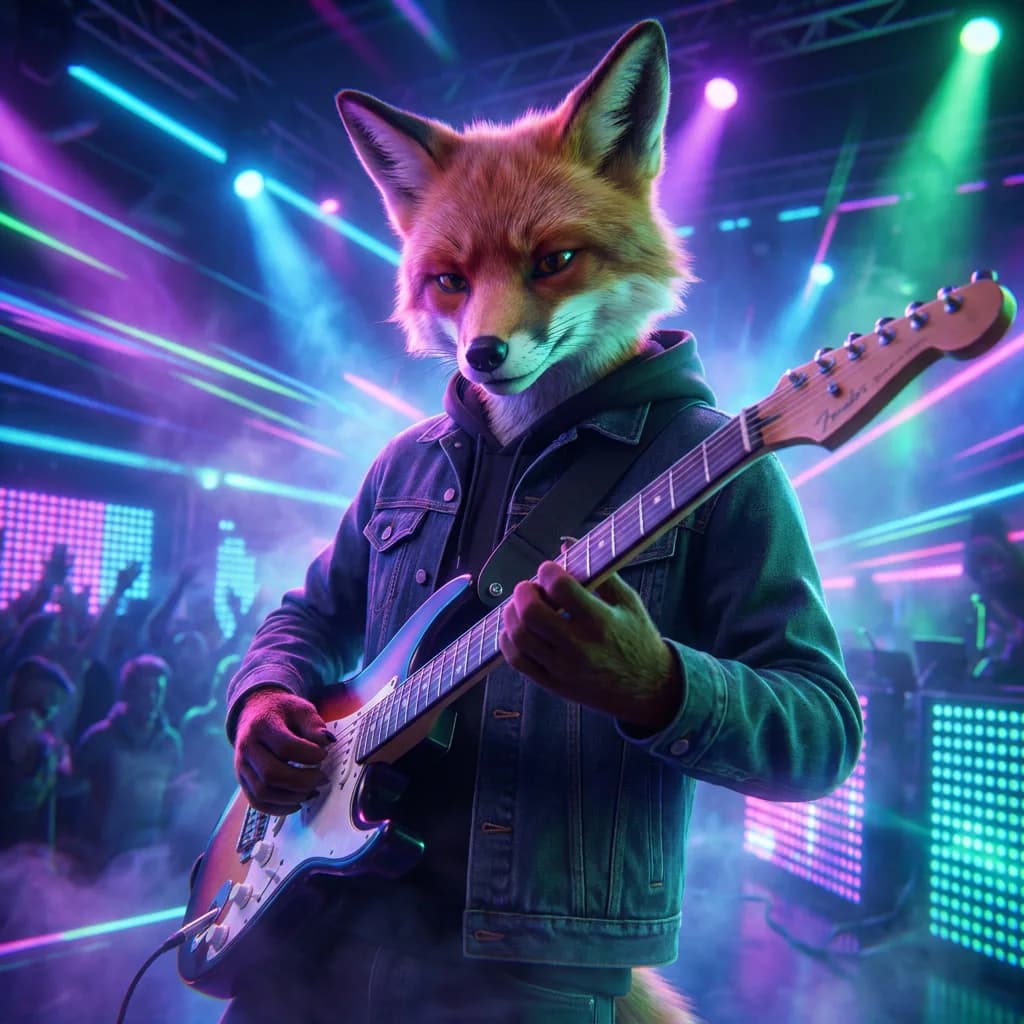
Anthropomorphic adult fox musician performing on a neon-lit stage, upright humanoid body, expressive face, detailed fur, dynamic camera motion.
Text-to-video prompts for anthropomorphic characters
Describe an original character, one action, the setting, and the camera in that order. For example: an adult anthropomorphic fox in a worn aviator jacket glances toward the camera in a workshop while the camera slowly moves closer. Keep the visual brief short enough to leave room for motion instructions. If you already have approved character art, check whether the selected model accepts a starting image before uploading it.
Ears, tails, whiskers, and secondary motion
Small movements can make a character feel less static: an ear turning toward a sound, a tail moving as the body turns, or a scarf reacting to a breeze. Pick one or two details that support the action and describe their timing. Too many simultaneous instructions can compete in a short clip. Inspect the result rather than assuming the model will animate every appendage correctly.
Use an approved still when the model allows it
Some video models accept a starting image. If the selected model offers that mode, upload a clear character still you have the right to use and describe the motion and camera separately. A reference may help guide costume and markings, but it does not guarantee identical details in later frames or across separate clips. Check the selected model panel for reference options; first and last frame controls are not universal.
Keep the camera move readable
Try one slow push-in, a gentle lateral move, or a locked camera while the character acts. These are easier to inspect than several moves in one prompt. Watch how fur, eyes, and paws change when the subject turns or crosses the frame. If the shot breaks down, simplify the action or framing and compare another result; no camera instruction guarantees stable anatomy.
Check duration, resolution, and credits together
Select a model first, then review the duration and resolution options it actually exposes. Some models have fixed choices, and pricing need not increase by the same amount for every setting. The studio displays an estimate for the selected job before submission. Start with a supported short setting when exploring motion, inspect the whole result, and decide whether another generation is worth its displayed cost.
Review flicker, paws, and face drift
Inspect the clip from start to finish. If fur flickers, try a simpler fur description and less camera movement. If paws merge or faces change, try a wider shot, a simpler action, or a clearer authorized starting image when the model supports one. These are prompt experiments, not reliable fixes. Keep a good result and compare any new attempt before replacing it.
Where a furry character clip fits
Short generated clips can support an original character reel, a moodboard, a social post, or previsualisation for a game or film. Precise lip-sync, long multi-shot continuity, and exact character fidelity may require editing, animation, or a rig outside Video Studio. Use original or authorized character art, and get permission before using an identifiable real person as a reference. Check the selected model terms before publication.
Four furry video briefs to adapt in Video Studio
Workshop glance: an adult anthropomorphic fox in an aviator jacket looks toward the camera and flicks one ear in a quiet workshop; gentle push-in. Character idle: an original wolf character in a knitted scarf stands in falling snow, breathing slowly; locked camera. Rooftop walk: an original cat-like character crosses a rooftop garden while its tail moves naturally; gentle side tracking. Music mood: an original furry character sways to a slow rhythm in warm interior light; stable camera.
Add a supported duration and aspect ratio in the studio, then review the output. A prompt cannot guarantee seamless loops or consistent anatomy.
Choose settings the selected model supports
Check the current duration and resolution choices in Video Studio; the available controls depend on the model. A short clip may be easier to review, but there is no universal number of seconds that prevents drift. Keep the same character brief when comparing attempts and change one prompt or setting at a time. Video Studio does not expose a seed control in this workflow, so save the prompt and any approved source image yourself instead of relying on a locked seed.
Plan credits for a ten-clip character reel
Write a short shot list before generating ten clips. For each shot, check the selected model, input mode, duration, resolution, and displayed credit estimate; each additional attempt has its own cost. Start with one shot to see whether the character and motion are usable, then decide which shots need another pass. The number of retries varies by prompt and model, so do not budget from a fixed take count. Assemble and trim the selected clips in a separate editor.
Furry video versus animal and anime video
A furry brief centers on an original anthropomorphic character with clothing, expression, and animal traits. An animal video centers on an animal in a habitat; an anime video centers on an illustrated character and its line work. Choose the prompt structure that matches the subject, then inspect the result for anatomy and style drift. A generated clip is a visual concept rather than proof that a character design will stay identical across a production.
Deliver a more consistent character reel
Keep a short record of the approved character description, lighting, aspect ratio, model, and source image when one is used. Reuse those inputs where supported, but review every clip because likeness can still change. Arrange clips, correct continuity, add captions and audio, and perform final colour work in a video editor.
FAQ
- How do I keep my furry character consistent in a video?
- Reuse an approved character still when the selected video model supports a starting image, and repeat a short character description. This can guide the look but does not guarantee identical markings or costume. Review every frame and each new clip.
- Why does my anthropomorphic video look like a still image?
- Add one clear character action and one small secondary movement, such as an ear turn or scarf moving in a breeze. Describe the timing, then inspect the full clip; some requested motion may not appear.
- Which Ofrai video model should I use for furry clips?
- Check the live model picker for available input modes, durations, resolutions, and the displayed credit estimate. Try a short, comparable brief on models available to your account and judge the results for your character; this page has no verified performance ranking.
- What causes flicker and melting paws in generated fur?
- Fine fur detail and complicated motion can make these artifacts more noticeable. Try simpler fur, a steadier camera, or a wider shot, and inspect the new result. These changes do not guarantee a fix.
- How long should a furry clip be?
- Start with a short duration offered by your selected model, then review the entire clip. Available durations differ by model, and no fixed length guarantees stable fur or faces.
- Can I use generated furry video commercially?
- Check the selected model terms, the rights to your character and any reference image, and the rules of your publishing destination. Do not assume generation alone gives exclusive IP rights or permission to depict a real person.
Related generators
- AI Animal Video Generator
- AI Anime Video Generator
- AI Realistic Video Generator
- AI Short Video Generator
- Best AI Long Video Generator
- Wan 3.0 Video Guide for Motion and Camera Work
- AI Object Replacement Video
- AI Outfit Swap Video
- AI Photo Dance Video Generator
- AI Product Swap Video
- AI Virtual Try-On Video
- Photo to video