Features
AI Object Replacement Video
By Ofrai Editorial (Use Case Research)
Use Ofrai Video Studio to replace a bottle, sign or prop in footage you already have. Choose a model that accepts source video and add a clear reference of the new object if that model supports it. Video generation uses credits. Check the estimate before generating, then review the result for changes to movement, lighting and shadows.
Chat and video use credits from your Ofrai balance.
Example prompts
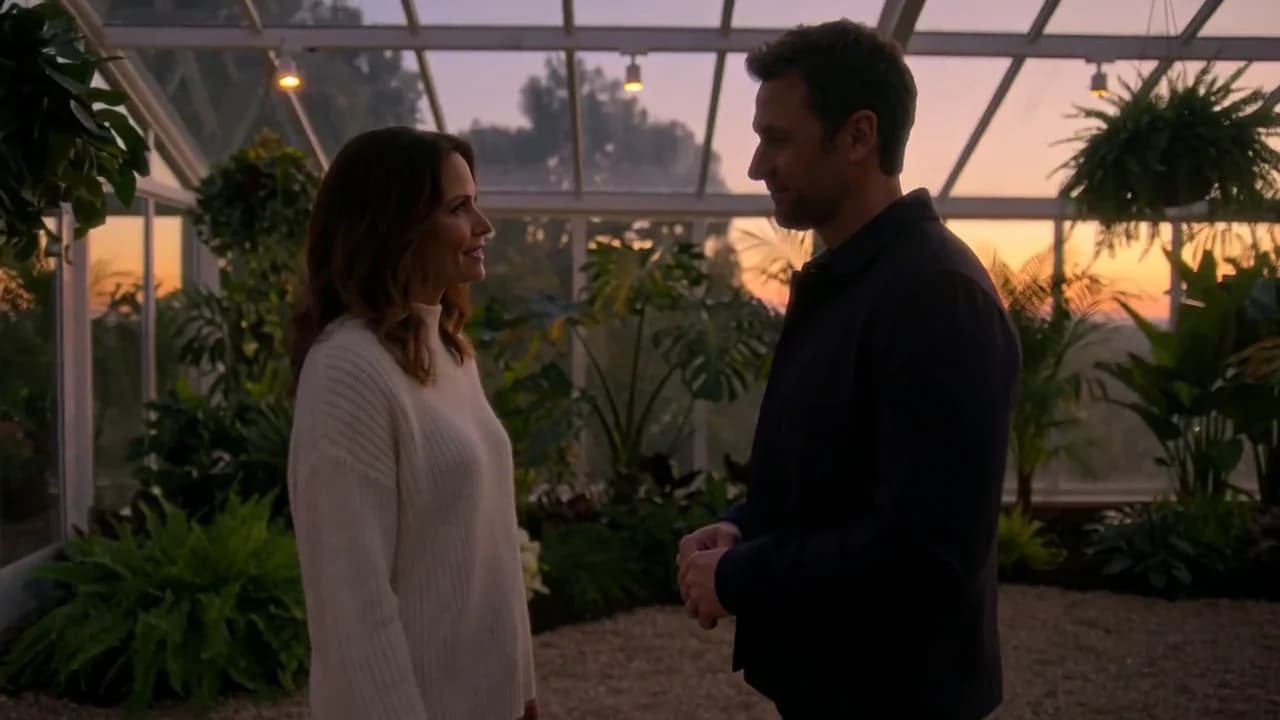
Two people talking in a sunset greenhouse, plants and warm sky, cinematic mid-shot two-shot
Replacing an object is not the same as cleaning a plate
A plate fix cleans one region of a frame — dust, a stray cable, a logo you own but do not want. An object replacement changes what the scene is about: a different bottle, a different sign, a different tool. Both run inside Ofrai Video Studio, but replacement requires a second input and delivers far more per generation, because the same clip can be re-run many times with different objects. If your problem is removal rather than substitution, do not spend a replacement workflow on it.
Objects that swap cleanly, and objects that never will
Reliable cases: objects with clear silhouettes resting on a surface, hanging on a wall, or standing on a shelf, replaced by something of similar proportion and visual mass. Difficult cases: anything interacting with hands or faces, transparent or highly reflective items, thin structures like chair legs or plant stems, and objects partly hidden behind foreground elements. The working rule is proportion.
If the replacement is half the height of the original, the engine must rebuild the contact shadow, the occlusion and the balance of the frame — plan for that rather than hoping.
Reference inputs that make the swap believable
Give the engine two clean inputs: the source clip, and a photograph of the new object on a plain background with even light. Props baked into the reference photograph travel into the scene, which is almost never desirable, so use a cutout-grade image. Describe the replacement by material and geometry — matte, ribbed glass, brushed steel, hexagonal profile — because material language drives surface response, and surface response is what has to agree with the lighting already in the shot.
Occlusion, hands, and things passing in front
Occlusion is where most replacements are exposed. If a hand crosses in front of the object, that hand gets redrawn, and hands are the least dependable element in generative video. Pick a segment where the object is fully visible for most of its screen time, or where the interaction is brief and happens near the frame edge. Avoid objects held close to a face. When occlusion is unavoidable, generate shorter segments so the engine has fewer frames in which to lose the hand-to-object relationship.
Matching the shadow and the reflection
The shadow is what tells the truth. Name the light direction in the prompt and state the contact point, because the model falls back on soft, centred light when it is not told otherwise. Reflections are harder: an object standing on a glossy counter has to be re-rendered in that surface, and if the new material is more reflective than the original it arrives unnaturally sharp against a softer environment.
Where a perfect match matters, generate the object and its contact shadow as a separate pass and grade them together.
Clips that will not replace well
Some footage is not worth submitting. Fast camera movement and whip pans blur an object's position between frames. A very small distant subject with shallow depth of field gives the engine nothing to read. Compression artefacts and heavy grain make edges ambiguous, and a low-resolution source caps the quality of anything you put in it. Split the clip at any cut — the model treats a cut as a continuity error — and if the result still looks soft, upscale the original first.
Choosing among the engines listed here
seedance-2-5 holds object geometry and material response best, so it is the default for structured replacements. kling-3 is stronger when the camera is moving through the scene, since it tracks through space more reliably. gemini-omni earns its place when the replacement depends on reading the scene across frames, such as a graphic that has to align with existing signage or a caption in a specific place. wan-2-6 keeps experiment costs low.
Test the segment cheaply, then re-render the approved take on the strongest engine.
Replacement prompts that name the new object precisely
The prompt has to describe an object, not a category. "Replace the brown leather satchel on the bench with a navy canvas weekender bag of the same size, same handle position, matte fabric, no visible logo." "Swap the red toolbox on the floor for a black hard-shell equipment case, same footprint, glossy lid, sitting at the same angle to the floor." The pattern is material, size relationship, orientation and finish, plus an explicit statement of what must not change.
Every clause you add about the new object is a constraint that removes an improvisation. Two clauses consistently pay for themselves and are usually left out: state the surface contact point so the object sits rather than hovers, and state the reflection behaviour so a glossy replacement does not begin mirroring a matte room. Anything you do not state, the engine decides for you, and it decides in the direction of generic.
Finding the right moment inside the shot to swap
Most clips have one window where a replacement works and the rest does not, and finding it is half the skill. Walk the clip a second at a time and mark the moments where the object is unoccluded, sharp, and roughly static relative to the camera. That window is normally shorter than people expect — often half a second — and it is the only part worth generating.
If the window is too short to use, the honest options are to cut a shorter clip centred on it or to accept a lower-quality swap across the whole take. Do not try to rescue a bad window with prompt language. When the object passes behind a person or behind foreground clutter, treat that as a cut point rather than something the model should bridge, because whatever it invents to fill the gap will be visible in every frame around it.
What to fix in post instead of re-generating
Some artefacts are generation failures and some are finishing gaps, and paying credits for the second kind is waste. Brand text and labels that warp are a finishing gap: generate the swap, then place the real type in an editor, where it stays crisp and correct. A slightly wrong colour cast on the replacement is a finishing gap too, and a grade in post fixes it in seconds. A missing contact shadow is borderline — a simple drop shadow often fixes it convincingly when the object is static in frame.
The genuine generation failures, which do need a re-render, are these: the object changing shape across frames, the object rotating when the original did not, other scene elements quietly altering to match the new object, and the new object appearing in reflections it should not affect. Diagnose which category you are in before you spend.
Reading cost across three render passes
Plan this as three passes with different jobs. Pass one is a cheap timing test on wan-2-6 at low resolution, run across the whole clip, answering only whether the window is usable at all — expect to discard most of it. Pass two is a single approved segment on seedance-2-5 at delivery resolution, establishing whether geometry and material hold, which is where most of your real failures surface.
Pass three is a full-length render on that segment, re-run only if the approved segment turned out to be the wrong length. The expensive mistake is running pass two on the whole clip instead of one segment, because a full-length render that fails at second three has cost you the clip three times over. Where objects stay within one category across a catalogue, keep the same driving clip and prompt skeleton for every variant.
Object replacement video versus product swap video
These overlap heavily and the difference is commercial rather than technical. Both replace something in a clip you already have. Product swap is aimed at a catalogue: the same scene, lighting and camera move, run once per SKU, usually several variants from one take, with the object held static and the emphasis on brand recognition at thumbnail size.
Object replacement is aimed at props and set dressing — changing a satchel for a weekender in a lifestyle film, a toolbox for a hard case in a workshop sequence — generally one or two changes rather than a catalogue. Practically, the product version insists on clean references and legible labels, because it goes into a store listing; the prop version does not, because nobody will inspect the stitching. Use product swap when the object is the point of the video, and object replacement when the object is scenery.
FAQ
- Can I replace an object without reshooting the scene?
- That is the main use case. Upload the footage and a clean reference of the new object, describe the change, and the engine re-renders that region while keeping the camera move, lighting and background from your original take. Shoot the clip with a clean, uncluttered object in frame so the swap has somewhere to land.
- How do I replace an object a person is holding?
- It works best when the interaction is brief and the object is held away from the face, because the hand has to be redrawn each frame. Pick the segment where the grip is clearest and generate it as a short clip so the model has fewer frames to lose the relationship between hand and object. Long takes held in frame are the version that fails most often.
- Can I replace an object that has text or a label on it?
- Text inside a replacement object tends to warp, especially on curved surfaces, because the engine regenerates it rather than preserving it. Keep any wordmark short, choose a straight-on reference of the label, and expect to re-render a few times. For a hero frame where the label must be perfect, composite the corrected graphic in an editor instead.
- How long should the source clip be?
- Three to eight seconds is the useful range, and shorter clips are easier to approve. Cut the footage at any edit point before uploading, since a jump cut reads as a continuity error and the model will try to smooth it. Longer clips are also more expensive, so test a two-second segment first and only extend once the swap works.
- What if the new object is a different size or shape?
- Expect to re-render the framing rather than only the object. A change in height or footprint alters the contact shadow, the occlusion relationships, and how the object sits in the composition. State the new dimensions in the prompt, describe the contact point explicitly, and if the silhouette changes dramatically, pick a different segment of the clip where the composition still works.
Related generators
- AI Photo Dance Video Generator
- AI Product Swap Video
- AI Dance Transfer For Choreography Reuse
- AI Motion Transfer Video Generator
- AI Outfit Swap Video
- AI Virtual Try-On Video
- Seedance 1.5 Pro on Ofrai
- Photo to video
- AI Animal Video Generator
- AI Anime Video Generator
- AI Furry Video Generator
- AI Realistic Video Generator