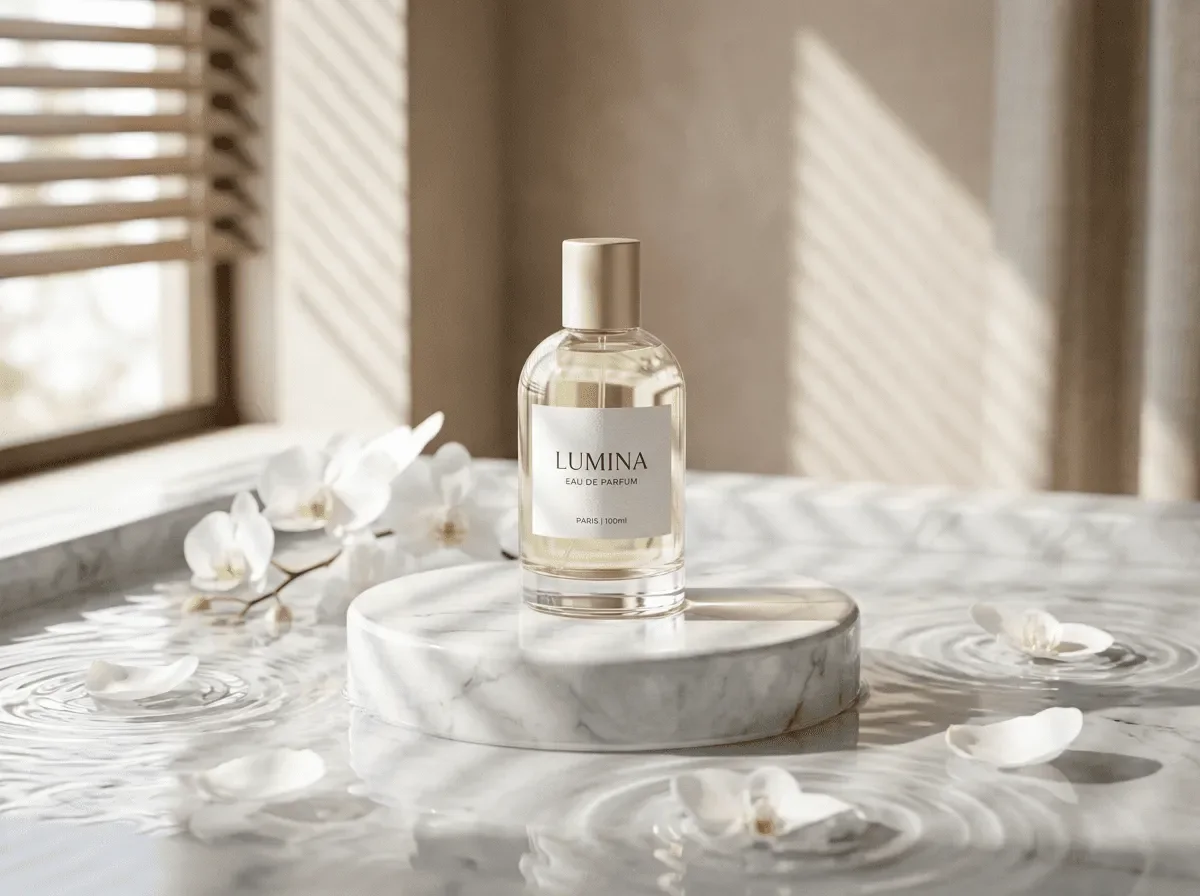
AI Product Background Generator
Upload your product photo and choose a background: white studio, sunlit stone or a dark campaign set. Edit the prompt before generating. You can also describe a portrait background; compare faces and product details with the original.
AI product backgrounds, from studio to lifestyle
Start from the product photo you already have. Change its setting and light, then compare it with your original.
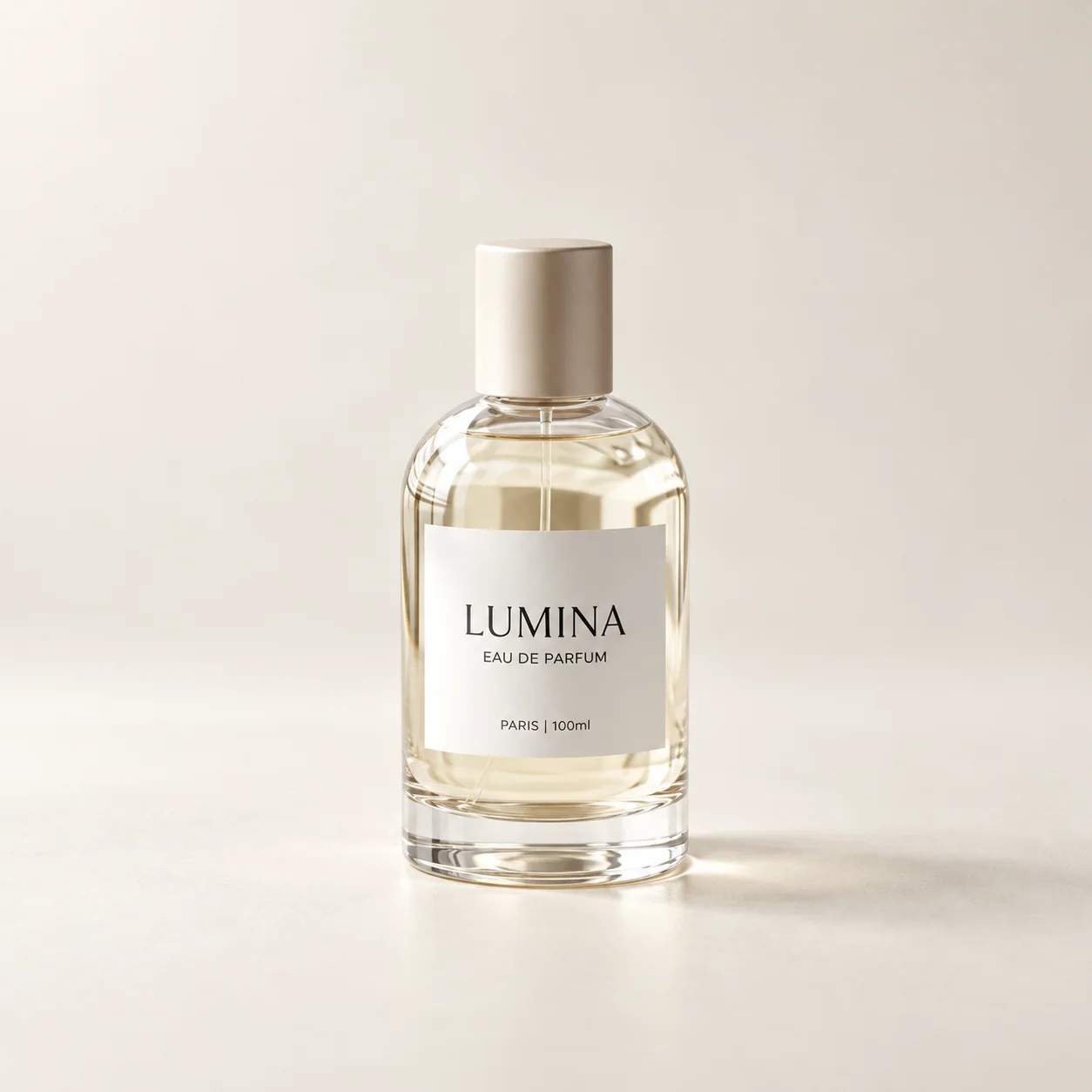
White studio background
Replace a distracting scene with a plain background and contact shadow.
Use this preset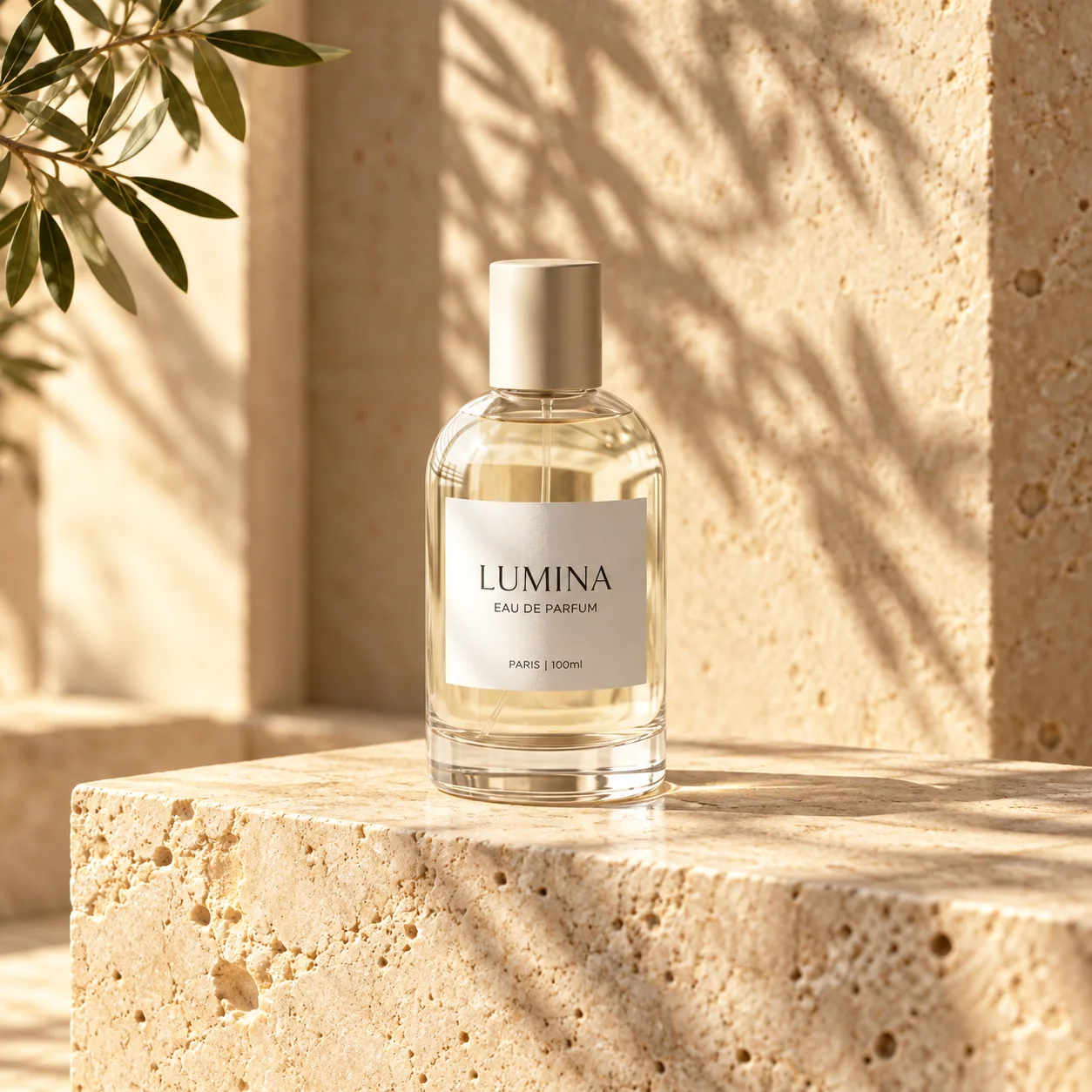
Sunlit lifestyle background
Move the product into a window-lit setting with a natural surface.
Use this preset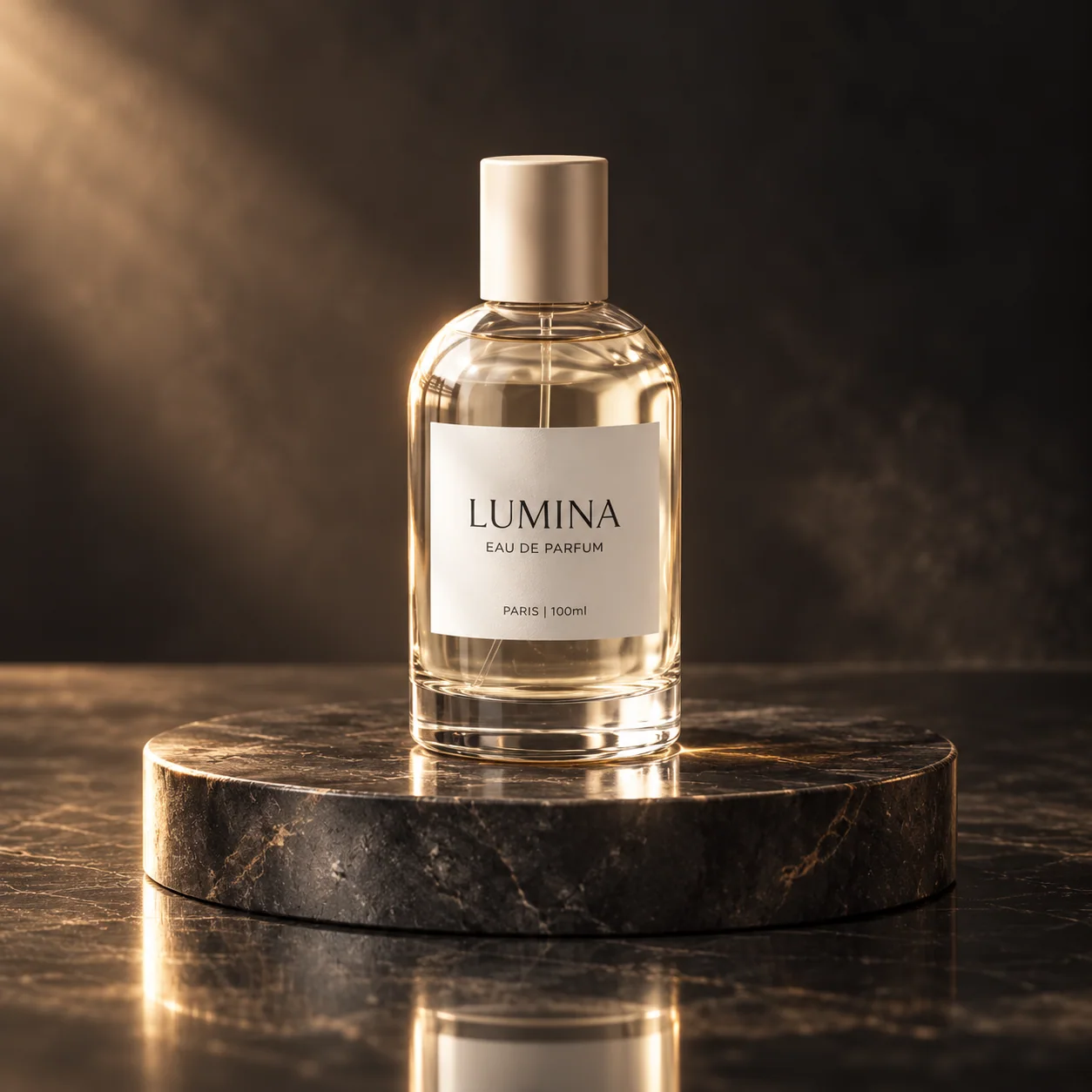
Dark campaign background
Try a darker set with side light and space for a later layout.
Use this presetUpload a clear photo of your own product above. The illustrations are not submitted as your reference.
Style and motion illustrations, not verified Ofrai results from the same product. Review shape, color and labels in every output.
What it is for
Marketplace and shop images that need a consistent backdrop, seasonal versions of the same product shot, lifestyle scenes from a plain packshot, and portrait backgrounds that are cleaner than the original room. Review each generated image before using it in a real catalogue; the model can change product details.
How it works in Image Studio
Pick an editing model, upload the photo as a reference image, and write the change as an instruction. Say what must stay — “keep the bottle, label and lighting exactly as they are” — and then what the new background should be. The model returns a new image with the subject placed in that scene. There is no mask to draw: the instruction does the selecting.
Which model to use
The panel lists available models that accept a reference photo. Start with the selected model and inspect the silhouette, label and lighting before trying another. A model name is not a promise of exact reproduction; use the same source photo when comparing options.
Getting a clean result
Start from a sharp photo where the subject fills most of the frame. Match the new background's light to the original: if the product was lit from the left, ask for a scene lit from the left. Name the surface the product sits on, because contact shadows are what make a composite look real. Check small text on the label after every generation — editing models sometimes redraw it.
Choose a white studio or lifestyle background
For a listing image, ask for a seamless white backdrop and a soft contact shadow. For a lifestyle image, name one surface and one light source, such as a pale oak table with window light from the left. Compare both drafts with the source photo. If the label or product colour must remain exact, keep the original product pixels and composite them in an editor.
When you need a transparent background instead
If the goal is a cut-out on transparency for your own design tool, use the product cutout or transparent product assets tools instead. A background generator always returns a complete scene, not an alpha channel.
Cost
Each edit is a new generation. The panel shows the credit estimate for the selected model and settings before you submit. Start with one image at the default size, review it, and only then create more variations.
FAQ
- Will the product change?
- It can. Editing models redraw the whole image, so check the shape, colour and label. Asking explicitly to keep them unchanged helps a lot.
- Can I change the background of a portrait?
- Yes, if it is you or you have the person's permission. Faces can shift slightly; compare with the original before using it.
- Can I do many products in one go?
- Each product is a separate generation. Reuse the same instruction text for every product so the backgrounds stay consistent.