Features
AI Trace Image Generator
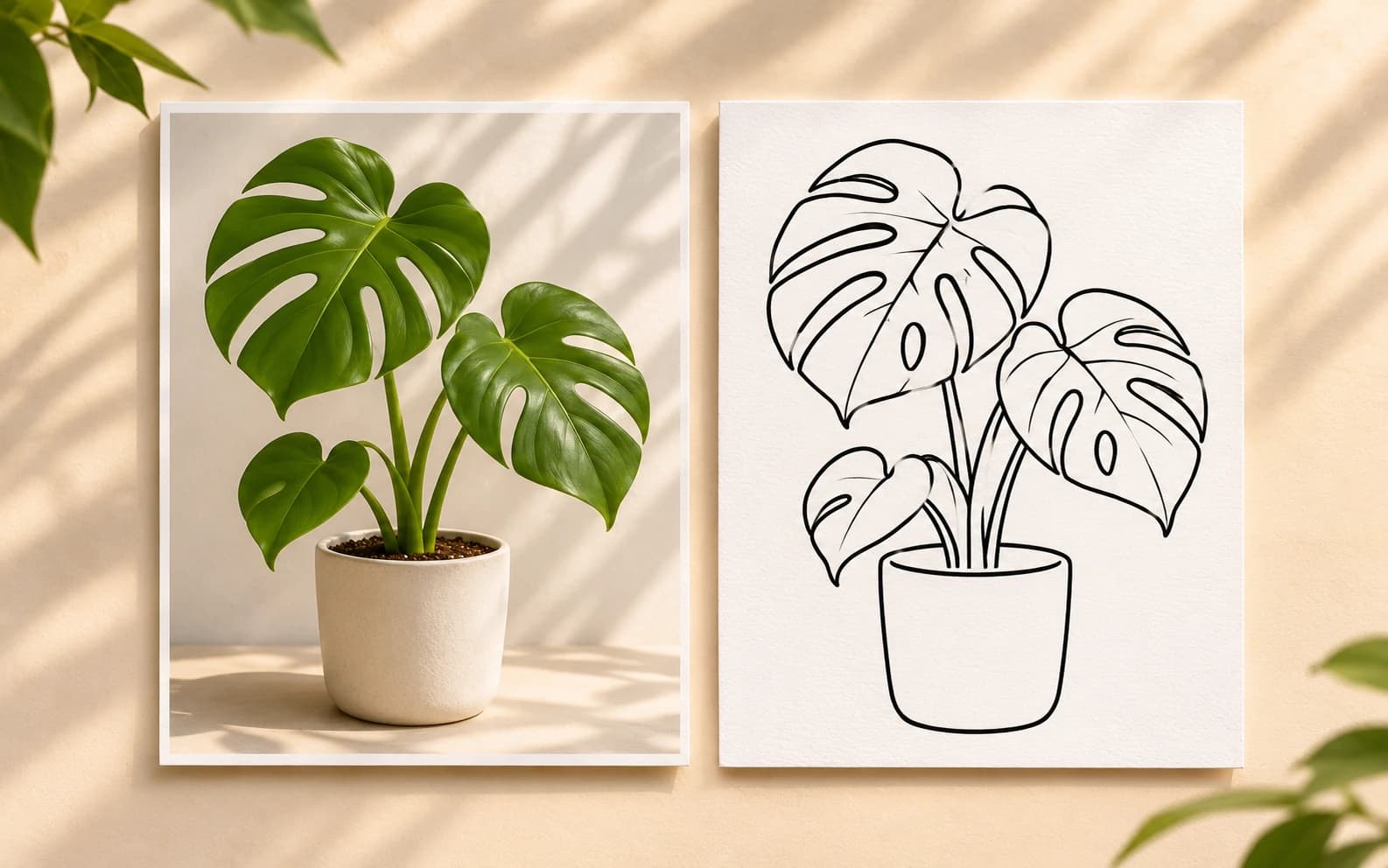
Create a trace-style drawing from an image you own or are allowed to use. Upload the reference in Ofrai Image Studio and ask for simplified outlines, a clean background and the detail level you need. The output is a generated raster image, not a pixel-exact trace or editable vector path.
New accounts include 1 free GPT Image 2.5 generation. Other models and video use credits.
Example prompts
Clean black line-art illustration of a single potted monstera plant on white, with even medium-weight contour lines and only the largest interior shapes. If I upload a reference, follow its main silhouette instead. No photographic texture or lettering.
Choose a clear source image
Use a reference with one main subject and a readable silhouette. Flat lighting and a simple background give the model fewer edges to invent. If the source is crowded, crop it before uploading or say which subject to keep. Check that you have permission to transform the reference.
Direct the line weight and detail
Ask for thin contour lines, bold poster outlines or a limited number of interior details. Say whether you want shading removed, and keep the background plain. Compare the first result with the source: the model may redraw proportions and miss small features even when you ask it to follow the reference closely.
Make production files separately
Use the generated line art as a sketch or visual starting point. If you need SVG paths, cut lines, embroidery geometry or a print-ready vector, recreate or trace the approved image in a dedicated vector tool and inspect every contour. Image Studio does not output editable vector paths from this workflow.
Simplify the reference in stages
Begin with the outer contour and a few large interior shapes. If the first drawing is noisy, remove shading and texture before changing line weight. Keep the source open beside the result so you can see whether a key shape has been lost or invented.
Inspect the line art at output size
A thin contour may disappear on a small sticker or printed card. Preview the raster image at the size you plan to use, then ask for bolder lines or fewer details if needed. For cutting, embroidery or a logo, rebuild the selected design as checked vector geometry in a separate tool.
FAQ
- Will I get an SVG or vector file?
- No. This workflow creates a raster line-art image. Use a vector editor to build and check editable paths.
- Can it trace any photo exactly?
- No. The model interprets and redraws the source. Choose a clear authorized image and compare proportions after generation.
- Can I make a logo from the line art?
- You can explore a concept, but an editable logo needs original design review and vector cleanup outside Image Studio.