Features
AI Papercraft Generator
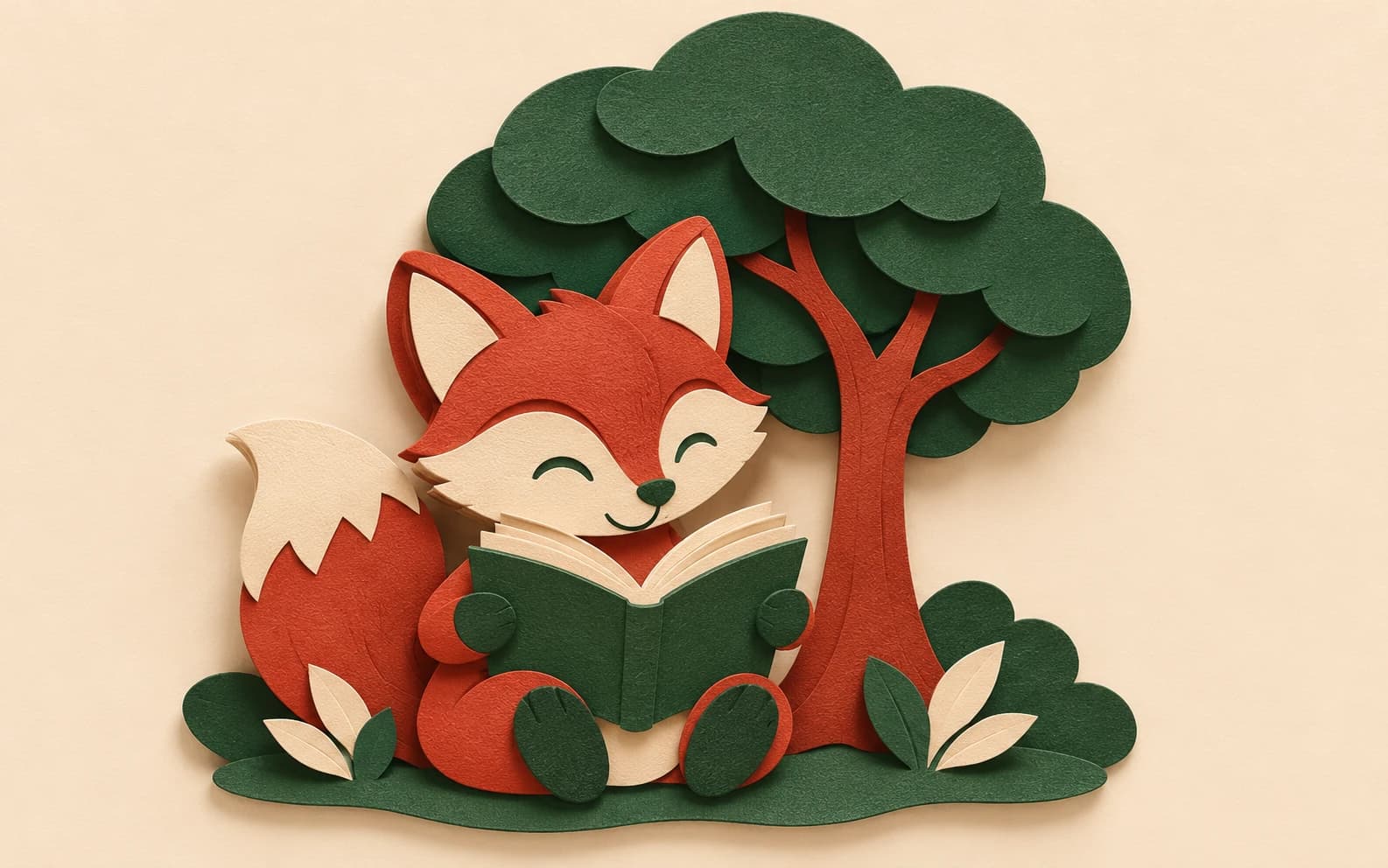
Turn a subject into a cut-paper illustration in Ofrai Image Studio. Describe the paper layers, colours and shadows you want, choose an image model, and generate a visual concept you can refine. This workflow makes artwork that looks like papercraft; it does not produce a measured fold-and-cut template.
New accounts include 1 free GPT Image 2.5 generation. Other models and video use credits.
Example prompts
A small fox reading beside a paper tree, layered cut-paper illustration, visible card-stock edges, gentle shadows between layers, three colours, clean background, no words or cutting lines.
Choose a paper look before you choose a subject
Papercraft can mean a flat collage, a shadow-box scene or a photographed paper sculpture. Pick one. For a layered illustration, ask for three to five card-stock layers, visible cut edges and soft shadows between them. For a sculpture look, name a folded form and a camera angle. Add the subject only after the material and depth are clear; otherwise the model may return a regular digital painting with a paper texture.
Build a prompt you can actually revise
Start with a simple composition such as one animal against a plain background. Specify a limited palette and where the light falls. A useful first prompt is: ‘a red fox under an oak tree, layered cut-paper illustration, five card-stock layers, warm cream and rust palette, side lighting that shows each edge, no lettering.’ Generate one image, inspect the outlines, then change one variable at a time: layer count, palette or camera distance.
Use a reference when the subject must stay recognizable
If you have a drawing or approved character, upload it as a reference in Image Studio and ask for the same silhouette in a paper-cut style. Compare the face, proportions and distinctive marks with the original after each run. An image model can redraw details even when you ask it to preserve them, so keep the source image and choose the closest result instead of treating the first output as exact.
What you can download, and what you cannot
The output is an image for a moodboard, illustration, invitation or craft concept. It is not a vector cutting file, SVG path set, printable net or assembly plan. If you intend to make the object physically, a designer still needs to separate layers, check dimensions and add tabs or fold marks in a craft or vector tool. Avoid promising a ready-to-cut pattern to anyone using the preview.
Move from concept to production
Generate at a square or portrait ratio that fits the final placement, then review edge contrast at the size people will see. For social posts, keep the layers large enough to read on a phone. For a physical build, use the image as a reference and recreate the shapes with measured geometry. The selected image model and settings determine the credit estimate shown before you submit a generation.
FAQ
- Does this create a printable papercraft template?
- No. It creates papercraft-style imagery. A printable pattern needs measured cut lines, fold marks and assembly checks outside Image Studio.
- Can I turn my own character into paper art?
- Yes. Upload a character image as a reference and describe the paper layers and palette. Check the result against the original because details can change.
- Which prompt detail matters most?
- Name the physical material and depth: card-stock layers, visible cut edges and shadows between layers. Those cues distinguish paper art from a flat illustration.