Video
MiniMax Hailuo 2.3
Video
Available on Ofrai — chat, images, and video in one place with shared credits.
Example prompts
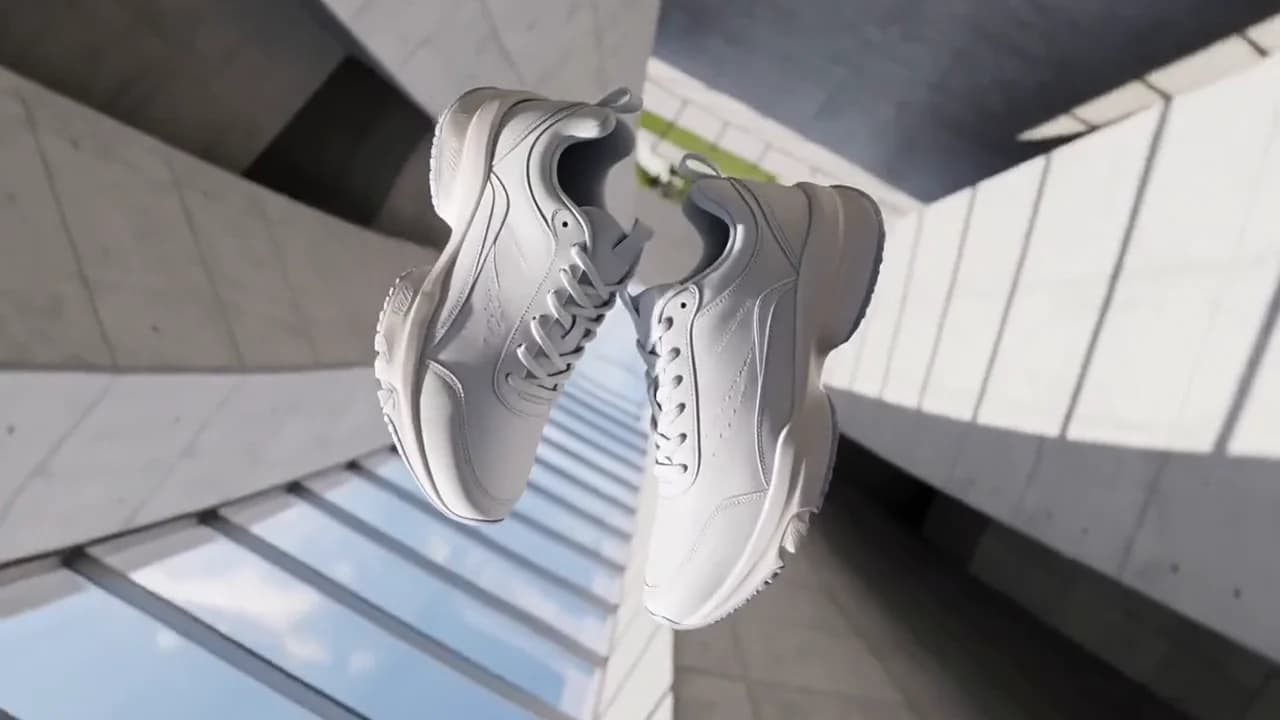
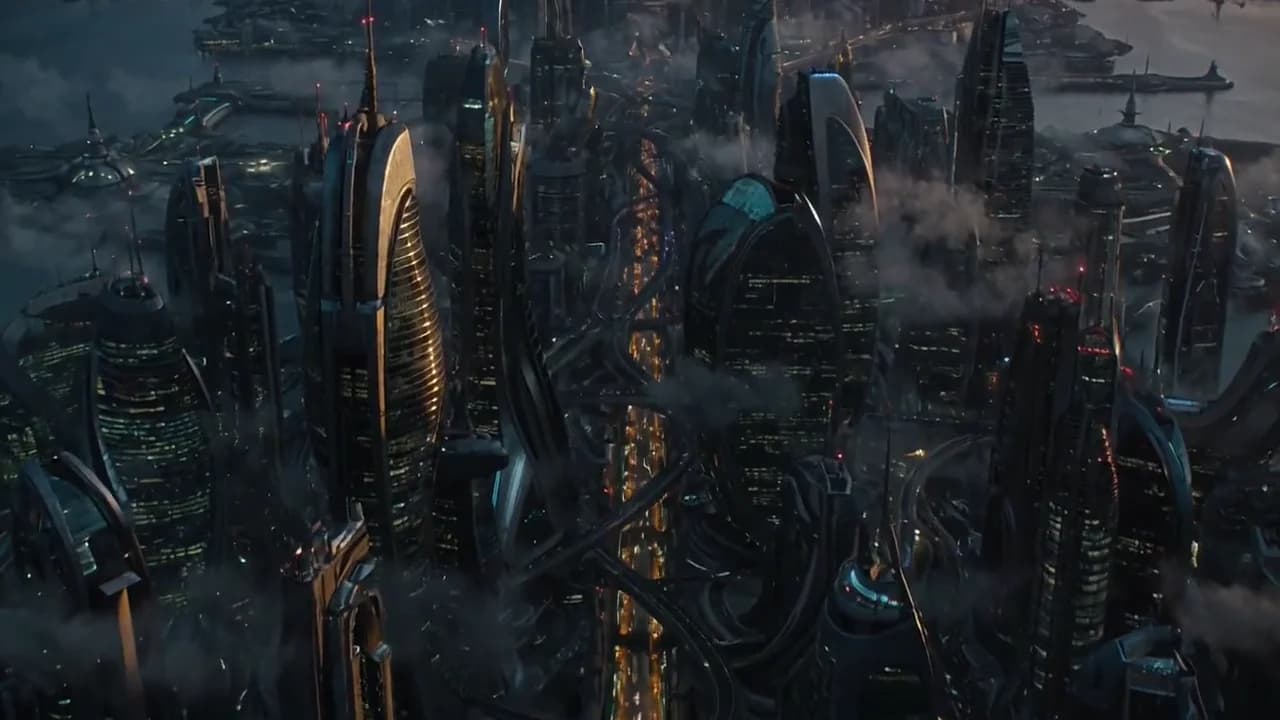
Choose an example to load its prompt and recommended settings into the MiniMax Hailuo 2.3 creator above.
How it works
Create with MiniMax Hailuo 2.3 in three steps
- 01
Choose your inputs
Keep MiniMax Hailuo 2.3 selected, then add a prompt and any supported reference assets.
- 02
Set the output
Choose the aspect ratio, resolution, and available Video options before generating.
- 03
Generate and refine
Review the result, adjust the prompt or settings, and generate another version from the same place.
MiniMax Hailuo 2.3 is documented as two model ids, and one of them is not a general-purpose option: MiniMax-Hailuo-2.3 handles text-to-video and image-to-video at the best documented quality, while MiniMax-Hailuo-2.3-Fast supports image-to-video only and requires a first frame image. If you have no source image, the Fast variant is not a cheaper version of the same job — it is the wrong endpoint.
The shared shape is otherwise familiar: 6 or 10 second durations defaulting to 6, 768P and 1080P resolutions defaulting to 768P, and the same 1080P-only-6-seconds coupling that constrains the sibling endpoint.
Two model ids, and the Fast one cannot start without an image
The reference lists MiniMax-Hailuo-2.3 as supporting text-to-video and image-to-video with the best picture quality of the two, and MiniMax-Hailuo-2.3-Fast as supporting image-to-video only, with a first-frame image required, at the cost of faster generation. That last clause is the operational one: on Fast, omitting image_urls is not a way to get a text-to-video render, it is a request outside what the model does. The routing rule that follows is simple.
Any job that begins from a still image is a candidate for either id, and the decision is a quality-versus-turnaround trade against the same input. Any job that begins from a written description must use the 2.3 id.
Teams that migrate from the previous endpoint tend to carry a habit of defaulting to the cheaper or faster id first; on this pair that habit produces failed text-to-video requests rather than merely slow ones, so the model id has to be chosen before the iteration loop starts rather than per render.
The resolution/duration coupling is the same here
Duration defaults to 6 seconds and is either 6 or 10. Resolution defaults to 768P and is either 768P or 1080P, with 1080P documented as supporting only the 6-second duration. That coupling is the single most useful thing to internalise about this endpoint, because it silently removes one of the four combinations you might otherwise plan around: 1080P at 10 seconds does not exist here.
The two workable high-quality options are 1080P at 6 seconds and 768P at 10 seconds, and they are not versions of the same shot — the first is tighter and cleaner, the second is longer and softer. Decide which one the edit actually needs before the render, since the difference is structural rather than a quality step. A shot that has to hold for ten seconds is not a six-second shot played slowly; it is a different piece of staging.
The prompt is required on this endpoint
Unlike the sibling endpoint, where the prompt is optional in the image modes, this reference documents the prompt as required, with a maximum of 2000 characters. That single difference changes how you write for image-to-video jobs here. On an endpoint where the prompt may be omitted, the picture is a complete brief on its own and the text is a refinement. Here the text is always part of the request, so it has to carry something even when the image already shows the subject.
The productive move is to spend those characters on motion rather than on description: the documented example of this endpoint pairs an action with camera brackets and a settle — a cat running through a garden with a push in, then stopping and looking at the camera with a fixed shot. Compare it with a prompt that restates what the image contains, and the difference in output is immediate. Description you did not need is space you did not use.
The 15-instruction camera grammar carries over unchanged
The camera system is the same as on the sibling endpoint: 15 bracketed instructions, combinable inside one bracket to apply simultaneously, and orderable by their position in the prompt to apply in sequence, with the guidance to keep combinations to three or fewer. That continuity is a genuine advantage when you move between the two endpoints, because the same prompt body works on either.
It also means the two endpoints can be compared honestly — a prompt that behaves differently across them is almost certainly being read through the model difference rather than the camera difference. The endpoint's own documented example demonstrates the sequential form with two distinct brackets placed in order, one describing the movement of the subject and the camera together, the second describing the settled end state. Write brackets as beats, not as adjectives: two ordered brackets describe a shot with a shape, whereas one bracket stuffed with five instructions describes noise.
Image requirements match, and the accepted formats are short
The first-frame input carries the same documented constraints as elsewhere in this family: JPG, JPEG, PNG or WebP, under 20MB, short side greater than 300 pixels, and an aspect ratio between 2:5 and 5:2. Passing exactly one image makes it the starting frame of the video; passing none is a text-to-video request, which is available on the 2.3 id and unavailable on Fast.
The short side threshold is the one that catches people out, because a phone portrait crop can be large in bytes and still fail on a dimension that looks generous on screen. Check the pixels, not the file size, before submitting. Given the endpoint is asynchronous and returns a task ID on submission, the cost of getting this wrong is a full round trip, which is another reason to validate a new source image once rather than assuming every image from the same shoot behaves the same way.
Where this endpoint's documentation stops
Two differences from the sibling endpoint are worth stating plainly because they bound what you should plan around. First, the resolution list here is 768P and 1080P only — the 512P standard-definition option documented on the sibling endpoint is not part of this endpoint's list, so a job that needs a low-resolution draft should not assume it is available at the same weight.
Second, the interface description for this endpoint documents text-to-video and image-to-video, whereas the sibling's description explicitly lists a first-and-last-frame mode as a third mode. Where a mode is absent from the documentation, treat it as unconfirmed rather than as removed: check the current reference before planning a first-and-last-frame job around this endpoint, and fall back to the sibling if the mode is genuinely required. That is the honest boundary of what these docs establish.
FAQ
- What is the difference between MiniMax-Hailuo-2.3 and MiniMax-Hailuo-2.3-Fast?
- MiniMax-Hailuo-2.3 supports text-to-video and image-to-video with the best documented quality. Fast supports image-to-video only and requires a first-frame image, but generates faster. Any job starting from a written prompt must use the 2.3 id.
- Does 2.3 offer the same resolutions as the previous endpoint?
- Not quite. The documented list here is 768P and 1080P, defaulting to 768P. The 512P standard-definition option documented on MiniMax Hailuo 02 is not listed for this endpoint.
- Can I request 1080P at 10 seconds?
- No. As with the sibling endpoint, 1080P is documented as supporting only a 6-second duration. Your high-quality options are 1080P at 6 seconds, or 768P at 10 seconds.
- Is the prompt mandatory?
- Yes, this reference documents the prompt as required, with a maximum of 2000 characters — including for image-to-video jobs where the image already shows the subject. Spend those characters on motion and camera beats rather than re-describing the picture.
FAQ
- Can I use MiniMax Hailuo 2.3 directly on this page?
- Yes. The creator above is the working Ofrai studio with MiniMax Hailuo 2.3 selected by default.
- Where are my finished results saved?
- Signed-in generations are kept in your Ofrai library so you can download or revisit them.
- Which prompts work best with MiniMax Hailuo 2.3?
- Describe the subject, setting, visual style, lighting, and camera or motion clearly. The examples above provide practical starting points.
- Can I edit the example prompts before generating?
- Yes. Load any example, then change its wording, aspect ratio, references, or other supported settings in the creator.
Related models
Compare other Video models that can handle similar creative work to MiniMax Hailuo 2.3.
Related guides
Tools
Commercial use depends on the selected model and model terms.