Blog
AI Background Generators: Choose for Your Product
By Ofrai Editorial (Editorial Team)
A new background only works when the product appears to belong in it. Choose between making an empty scene, editing around a reference product, and compositing a protected cutout. Each solves a different problem; start from how much of the original object must remain exact.
Three workflows to compare
Generate an empty scene when you need room for a product to place later. Use reference editing when a small change to the subject is acceptable. Keep a separate product cutout when packaging, labels or hardware must stay exact. A model shortlist is less useful than deciding which of these jobs you actually have.
Match the light before adding scenery
Read the original highlights and shadows. A bottle lit from the left needs a scene whose windows or lamps explain that light. Specify the surface height and viewing angle too. A countertop photographed from above will not convincingly hold a product shot from a low camera position.
A prompt for a clean product setting
Try: Edit the background around the uploaded skincare bottle. Preserve its silhouette, cap and label. Place it on pale limestone at eye level, with soft window light from camera left and a short contact shadow beneath the base. Leave the upper right uncluttered. Add no objects touching the bottle. Review the label even when preservation was requested.
Check contact, edges and reflections
Zoom into the base, transparent parts and fine edges. Look for a floating object, a dark halo, duplicated handles or scenery visible through an opaque product. Reflective metal and glass may require a coordinated edit to the reflections. If exact transparency matters, finish the composite in an image editor.
Compare with a fixed acceptance brief
Try the same reference and scene description on two available editing models. Judge product preservation and scene integration separately, using the original as the reference. The published Flux 2 and Seedream 5 comparison includes generated product scenes; it is visual context, not a test of background replacement on your SKU.
Export only the needed composition
Choose the destination crop before requesting a final render. Keep enough room for a product title or price in your layout tool, and add that text afterwards. Read the current generation quote after selecting references and resolution; count completed images you reject as part of the creative budget.
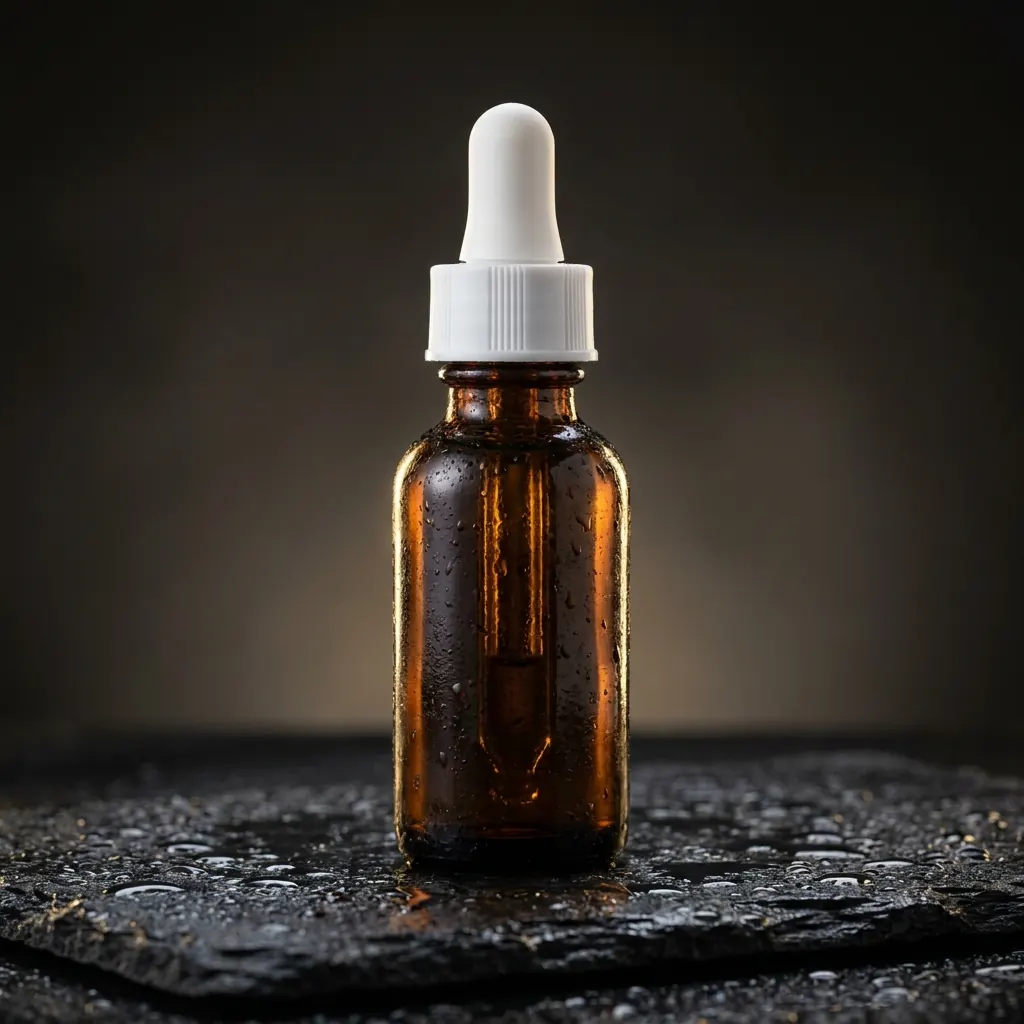
Two skincare images from the same written brief
Ofrai test · 2026-10-25 · 1K · 1:1 · one image per model from the same text prompt.
Studio product photo of an amber glass serum bottle with a white dropper cap on a wet black stone, soft rim light from behind, water droplets, shallow depth of field, commercial skincare advertising.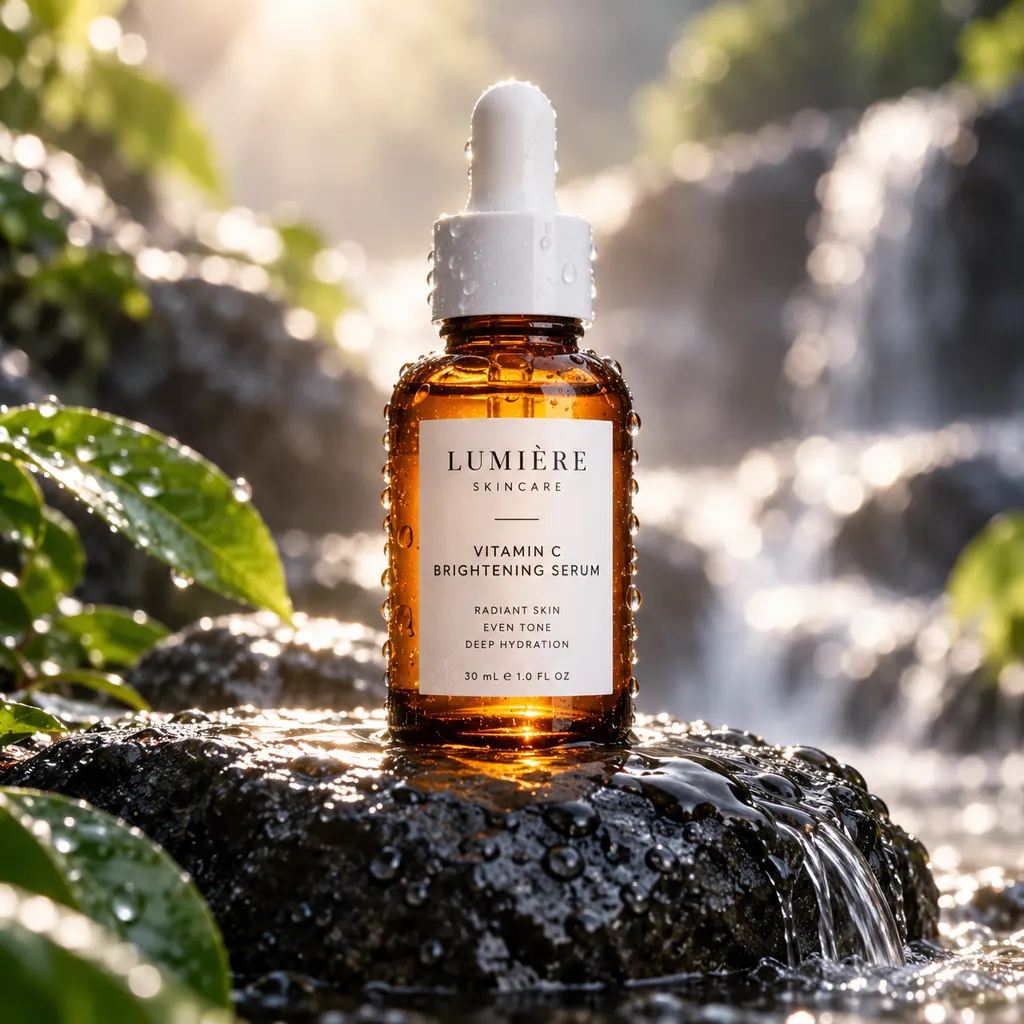
FAQ
- Does a background generator protect my label?
- A preservation instruction is not a guarantee. Check the original label against every result, or keep the original product as a separate layer.
- Can I generate an empty background?
- Yes: describe the setting and the reserved product position. Place your product later in an editor when exact pixels matter.
- Which resolution should I use first?
- Start with a supported draft size that lets you inspect edges. Check the intended publication size before paying for a final render.